Your whale
See who your whale is and what it's doing, and read and correct what it remembers about you.
Works on: the desktop app. On the phone you see your whale at the top of the list (see below). The web: not available yet.
Open your whale's profile
Do one of these:
- Right-click the whale at the top of the sidebar, or press the ⋯ beside it, and choose Open profile.
- Pick Open Whale's profile in the command palette (⌘K, or Ctrl+K on Windows and Linux). The palette uses your whale's name.
- Open Customize › Whales and choose your whale.
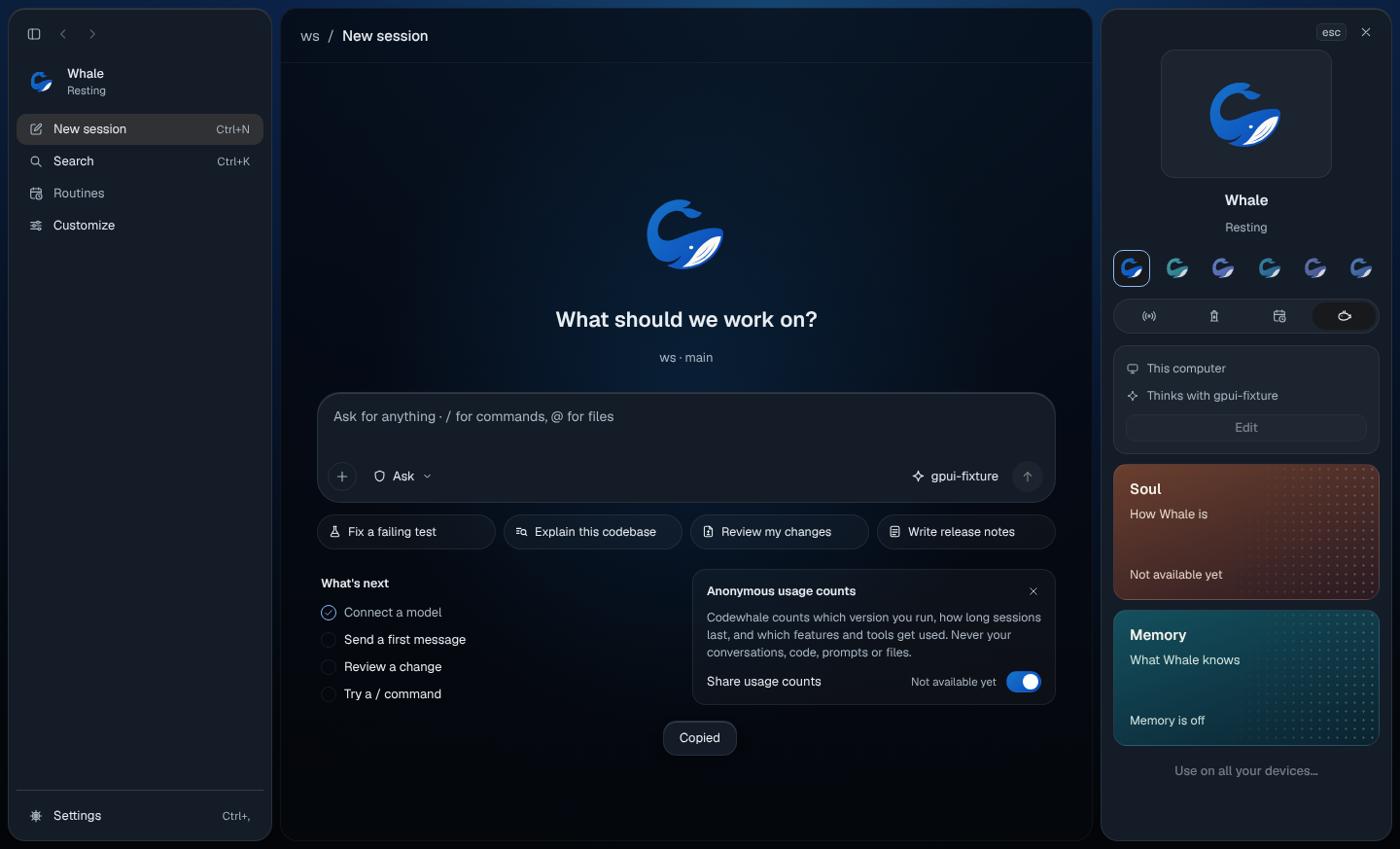
The profile opens on the right with your whale, its name and the same line the sidebar shows, such as "Resting". Press Esc or Close profile to put it away.
Under the name are the looks your whale can wear. Your whale keeps its blue look; choosing another one is not available yet.
The four buttons under the looks switch what the profile shows:
- Activity: the line saying what your whale is doing now. Anything more on this tab: Not available yet.
- Needs you: conversations waiting for your answer, each with Open. When nothing waits: "Nothing is waiting for you."
- Upcoming: Not available yet.
- Identity: where your whale lives (This Mac, or This computer on Windows and Linux) and the model it thinks with, then its Soul and Memory. Edit is not available yet.
Read and correct what your whale remembers
Choose Memory in the profile, or pick Open Whale's memory in the palette. Memory opens in place of the conversation. Press Back or Esc to return.
Memory has two parts:
- About you: "What Whale knows about you, in every folder. You own it."
- What it has learned: "What Whale picked up while working in this folder."
Each line is one thing your whale remembers, with the day it learned it. Point at a line, or move to it with Tab, to see where it came from ("From you · Nov 1") and to Edit or Remove it.
- Edit: change the words and press Enter (or Save). Esc cancels. A toast says "Saved to memory", with Undo.
- Remove: the line goes at once. "Removed from memory" offers Undo for 6 seconds (⌘Z, or Ctrl+Z). After that it's forgotten.
- Add something: at the end of About you. Type what your whale should know about you and press Enter.
With more than 20 lines, Search memory appears at the top.
If memory is off, the page says "Memory is off". Choose Turn on memory to let your whale remember between conversations.
When your whale wants to remember something
Your whale never adds to its memory on its own. When it wants to keep something, the line shows at the top of its part as Wants to remember, with Keep and Not this. A correction reads Wants to change, with the old words struck through.
- Keep saves it, and your whale uses it from then on.
- Not this throws it away. Nothing is saved.
Memory follows changes made elsewhere, such as in the terminal, while it's open.
Your whale's soul
Soul is how your whale is: its manner, its voice and how it works with you. Choose Soul in the profile, or Open Whale's soul in the palette, to read what it's for. Reading and editing the soul itself: Not available yet.
Not available yet
- Use on all your devices… (in the profile and the whale's menu).
- Show folder in Finder for your whale.
- Choosing another look, Edit on Identity, and Upcoming.
On your phone
When you're signed in, the top of the conversation list shows your whale with its name and one line saying what it's doing. It moves with its work and holds still when Reduce Motion is on. While it's busy, tap it to open the conversation it's working in. The profile, memory and soul: Not available yet.
Related
Previous: Customize · Next: The whale on your screen