The work pane
See what your whale is doing and what changed, without leaving the conversation: its to-do list, what's waiting for you, the commands it left running, its terminal, your files, and what the conversation has used.
Works on: the desktop app. Web and phone: not available yet.
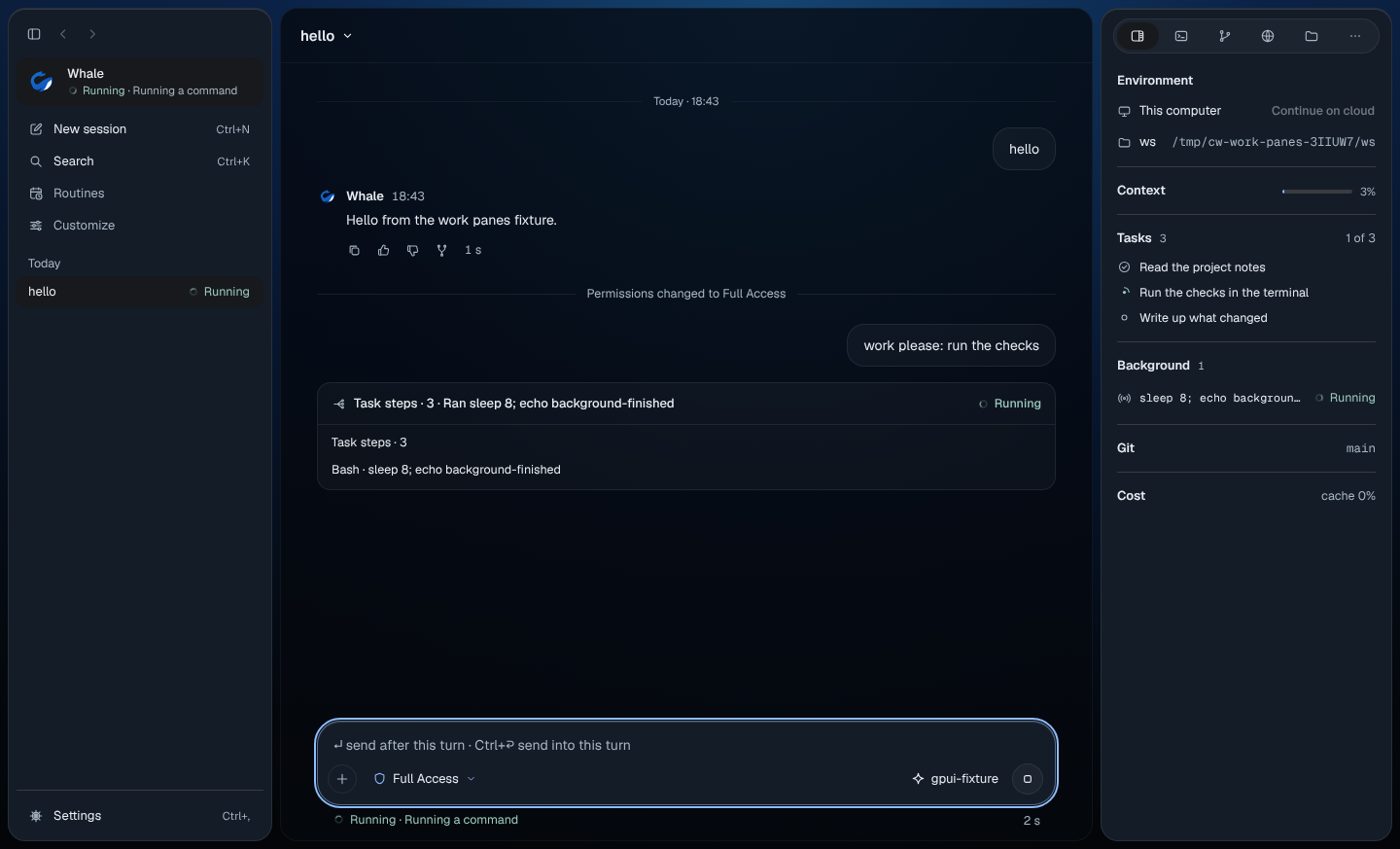
See where work is
The right side of the window starts on Overview. Each section shows only when there's something in it, and most headings open their full pane:
- Environment: where this conversation runs and the folder you're in. See Environments.
- Context: how full this conversation is, as a bar and a percentage.
- Tasks: your whale's to-do list, with how many are done ("1 of 3").
- Agents: helpers the whale started, each with its state.
- Approvals: requests waiting for an answer, each with its heading, such as "Run a command?", and "Needs you" when you can answer it. Right-click one to copy its command.
- Background: commands your whale left running, with Running while they run.
- Changes: every changed file with its added and removed lines, for example "README.md +2 −0".
- Git: the branch you're on.
- Cost: what the conversation has cost so far and how much came from the cache. A model with no published price shows the cache part only.
- People: in a group conversation, who's in it and how many are here now ("2 here").
- Activity: what happened and when, such as "You allowed once".
The buttons at the top switch panes: Overview, Terminal, Review, Browser and Files. The ⋯ button lists the rest: Tasks, Agents, Background, Context, Cost and Editor. Notes, Git, Aside and Keep awake say "Not available yet".
Every pane is also in the palette (⌘K, Ctrl+K), for example "Show
terminal". /jobs, /context, /cost and /subagents open their panes too.
When the window is narrower than 1200 px, the panel opens over the conversation; press the Overview button at the top right to show or hide it.
In a group conversation
Overview leads with what matters now, such as a running agent or an approval someone needs to give, and the other sections fold so you can open them. Approvals says who can answer, for example "Alex or Sam can approve", and that each request takes "Allow once or Don't allow". Context, Tasks, Background and Cost aren't shown. See Groups.
Watch the terminal
The Terminal pane shows the shell your whale works in, live. Before your whale runs its first command there, it reads "A new shell starts when your whale runs a command."
- Type into it to run your own commands in the same shell.
- ⌘F (Ctrl+F) finds text; Enter and Shift+Enter move between matches; Esc closes find.
- Shift+Tab moves focus out of the terminal. Tab goes to the shell.
- Right-click for Find, Select all, Clear, Interrupt and End shell…, plus Copy and Quote in reply when text is selected. End shell asks "End this shell?" first.
- If your whale keeps more than one shell, a button for each appears above the terminal.
The terminal works for conversations on this computer only, not for a group conversation.
Look at files
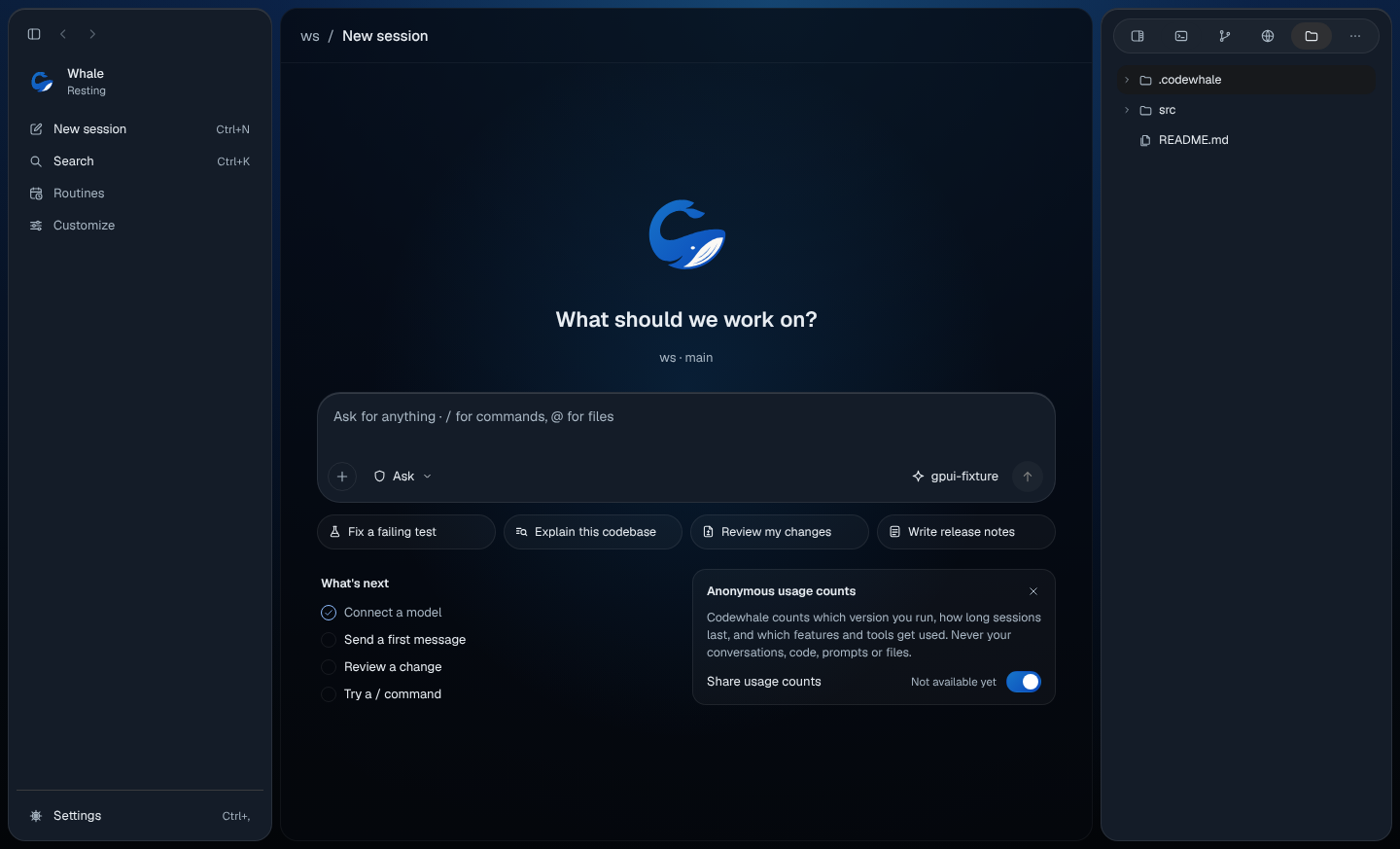
The Files pane shows the folder as a tree. Use the arrow keys to move, → and ← to open and close folders, and Enter to open a file. A file opens in the Editor pane to read; you can't edit it there. Right-click a changed file for Show changes, which opens Review.
Review a change
- Press Changes, or a file under it.
- Review opens with the changed files at the top and the diff below, added lines in green and removed lines in red.
- Press another file to switch. Show file shows the whole file around the change.
Right-click a line for Copy (with text selected), Copy › Patch for the change around it, or Copy › Path. To find out who wrote a line, see Review what changed.
Watch your whale's browser
When your whale uses a browser, the Browser pane shows that screen as it changes. You watch; your whale drives. Until there's a browser to show, the pane reads "Your whale's browser shows here when it opens one."
See background work, context and cost
- Background lists each command with its state. Press Output to see the last lines it printed; right-click to copy the command or its output, or to stop one that is still running.
- Context shows how much of the conversation's room is used, in tokens, and when Codewhale makes room by summarizing.
- Cost shows what was sent, received and taken from the cache, and the cost when the model publishes a price.
On the web
Not available yet.
On your phone
Not available yet. A group conversation's People screen is on the phone; see Codewhale on your phone.
Related
Previous: Approvals and permissions · Next: Review what changed