Accessibility
Use Codewhale with only a keyboard, with a screen reader, with less motion and more contrast, and in your own language.
Works on: the desktop app. The phone app is covered at the end. The web: not available yet.
Use only the keyboard
Everything you can click, you can reach with the keyboard.
- Tab and Shift+Tab move through the window in reading order: the sidebar, the conversation, the composer, then the side panel. A control with focus shows a blue ring.
- ⌘K (Ctrl+K on Windows and Linux) opens the command palette. Type what you want, such as "Open Customize" or "Settings", and press Return.
- Shift+F10, or the menu key, opens the menu for whatever has focus: a conversation in the sidebar, a message, a tool row, a file.
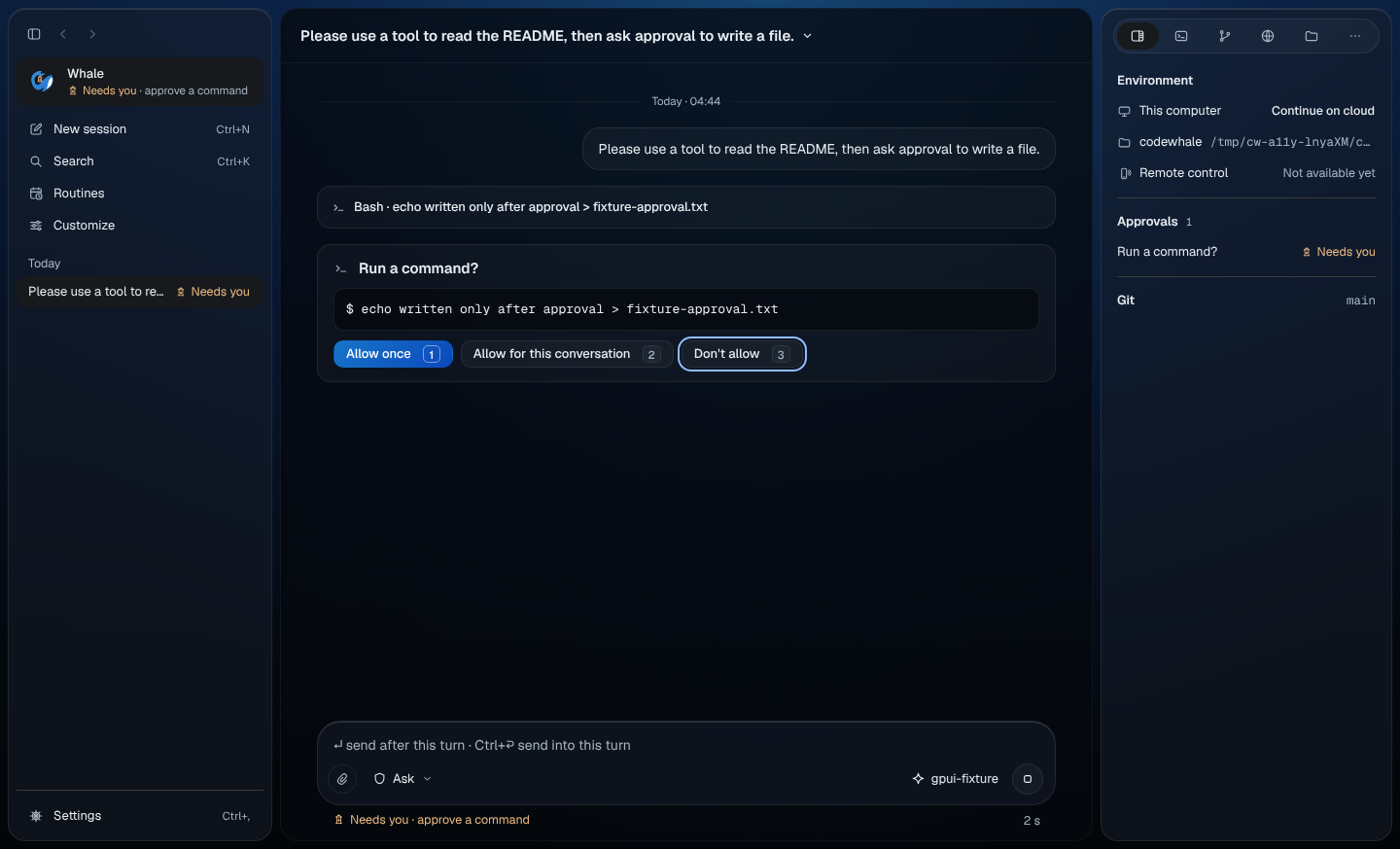
- ⇧⌘A (Shift+Ctrl+A) jumps to what needs you. On an approval card, focus lands on Don't allow, so pressing Return by accident never runs anything.
- Esc closes the innermost thing first: a tooltip, then a menu, then a sheet or page such as Customize, Routines or your whale's profile. Focus goes back to where you were.
- ⌘/ (Ctrl+/) shows every shortcut. The full list is in Keyboard shortcuts.
To resize the side panels from the keyboard, Tab to the edge between two panels and use the arrow keys.
In a narrow window the sidebar folds away. Customize and Routines then show the same sidebar button at the top left as a conversation does.
Use a screen reader
Every button, tab, menu item and field has a name, including the ones that show only an icon. A button's name starts with the words you see on it, so voice control ("Click Customize") works as you'd expect.
Codewhale tells you when something changes without moving your focus:
- When your whale needs you, it says so once ("Needs you · approve a command"). You keep typing where you were.
- An answered approval and short confirmations ("Copied") are read as they appear.
Each message in a conversation is one stop in the Tab order, so you can move through a long conversation one message at a time and open a message's menu with Shift+F10.
Reduce motion
Turn on Reduce motion in your system settings. Codewhale follows it; the Reduce motion row in Settings only shows that, and changing it there: Not available yet.
- The whale holds a still pose, with the same words beside it.
- The water is still, with no fish, jellyfish or bubbles.
- Menus and panels appear at once.
More contrast
Text in the conversation and the command palette is checked to hold at least 4.5:1 against what's behind it (3:1 for large text), in light and dark.
Turn on Increase contrast in your system settings and panels become Solid, with no water showing through, until you turn it off. See Appearance.
State never relies on colour alone. A state always has a word and a mark: Needs you with a lantern, Running, Ready, Stopped.
Use your language
Codewhale speaks 15 languages. In Settings › Appearance › Language you can pick Same as system, English or 简体中文. For the other 13, set your computer's language and leave Same as system on; see Appearance.
Input methods for Chinese, Japanese and Korean work in the composer. While you're still choosing characters, Return picks the candidate and never sends the message.
Labels have room for longer words in other languages. Russian, Japanese and Simplified Chinese are checked at narrow window widths so nothing is cut off.
On your phone
- Every button has a name for VoiceOver and TalkBack.
- With Reduce Motion on, your whale holds still.
- The app follows the phone's language, read when the app starts, and the phone's light or dark setting.
Not checked yet
These need a person on a real computer or phone, and haven't been done:
- VoiceOver on a Mac, NVDA on Windows and Orca on Linux, end to end.
- Typing with a real Chinese, Japanese or Korean input method (the check so far simulates one).
- The phone app with VoiceOver and TalkBack on real devices, and its contrast in light and dark.
Related
Previous: Appearance · Next: Commands and the palette