Routines
Let your whale work while you're away: a morning brief, a check-in at the time you pick, and the work it finished waiting for you.
Works on: the desktop app. "These run on this computer while it's awake and Codewhale is open." The phone and the web: not available yet.
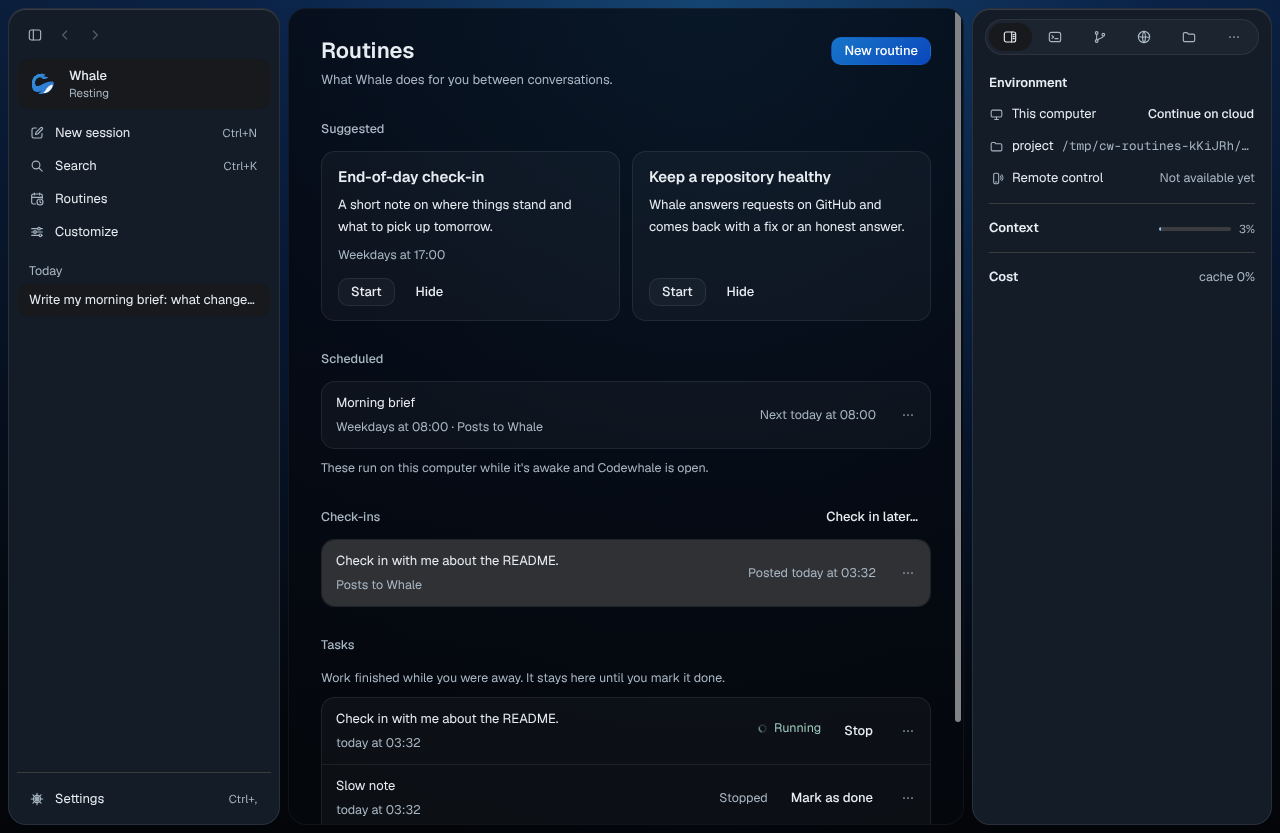
Open Routines
Select Routines in the sidebar, or choose Routines in the palette (⌘K
or Ctrl+K). The /automation command opens it too. Press Esc to go back to
your conversation.
Start a suggestion
Under Suggested, each card says what the whale would do and when. Press Start and it's scheduled.
- Morning brief runs on weekdays at 08:00 and posts to your whale's conversation: what changed and what's waiting for you. The palette's Get a morning brief starts it too.
- End-of-day check-in runs on weekdays at 17:00.
Press Hide if you don't want a suggestion. Undo in the message that follows brings it back.
Make your own routine
Press New routine, or choose New routine… in the palette. Give it a name, say what the whale should do, and pick when it repeats:
| Repeat | Runs |
|---|---|
| Weekdays | Monday to Friday at the time you pick |
| Every day | Every day at the time you pick |
| Every week | On the day and at the time you pick |
| Every few hours | Every 1, 2, 4, 8 or 12 hours |
Where it posts is your whale's conversation, the conversation you're in, or a new conversation each time. Press Start routine.
Each routine shows its schedule, where it posts and when it runs next, for example "Weekdays at 08:00 · Posts to Whale" and "Next today at 08:00".
Run, pause, stop and delete
Right-click a routine, or focus it and press Shift+F10:
| Choose | Key | What happens |
|---|---|---|
| Open conversation | ⌘↩ (Ctrl+Enter) | Opens where it posts. A routine that starts a new conversation each time has nothing to open. |
| Run now | R | Runs it once now. Its schedule doesn't change. |
| Stop | S | Ends the run in progress. The routine keeps its schedule. |
| Pause / Resume | P | Holds the schedule until you resume it. Nothing runs while it's paused. |
| Edit… | E | Not available yet. |
| Delete… | D, or ⌘⌫ (Ctrl+Backspace) | Asks once, then removes it for good: "It won't run again. This can't be brought back." |
Stop is for now, Pause is for later, and Delete is for good. A running routine also shows Stop in its row.
To pause everything that posts to your whale's conversation, right-click the whale at the top of the sidebar and choose Pause check-ins (P). Resume check-ins turns them back on.
Ask for a check-in
Choose Check in later… on the Routines page, in the palette, in a conversation's menu (L) or in the whale's menu (L). Say what it's about, pick when (In 20 minutes, In an hour, This evening, Tomorrow morning, or Pick a time) and where it posts, then press Set check-in.
A waiting check-in shows its time. To call it off, choose Cancel check-in (C) from its menu, or press Cancel in its row. Once it has posted, it shows when, such as "Posted today at 03:32". Open conversation (⌘↩ or Ctrl+Enter) opens where it posted.
Tasks you mark done
Tasks lists "Work finished while you were away. It stays here until you mark it done." Each run of a routine and each check-in is a task.
Press Mark as done in its row, or choose it from the task's menu (D). Codewhale never clears a task for you. Undo in the message that follows brings it back. A task that's still running has Stop (S) instead.
Notifications
Codewhale shows a desktop notification only when something needs you or work has finished, and only when you're not using the app. Select the notification to open the conversation. It never sends email.
Related
Previous: Review what changed · Next: Your account and cloud computers