Choose a model
Switch the model a conversation uses, and choose what new conversations start with.
Works on: the desktop app. Web and phone: not available yet.
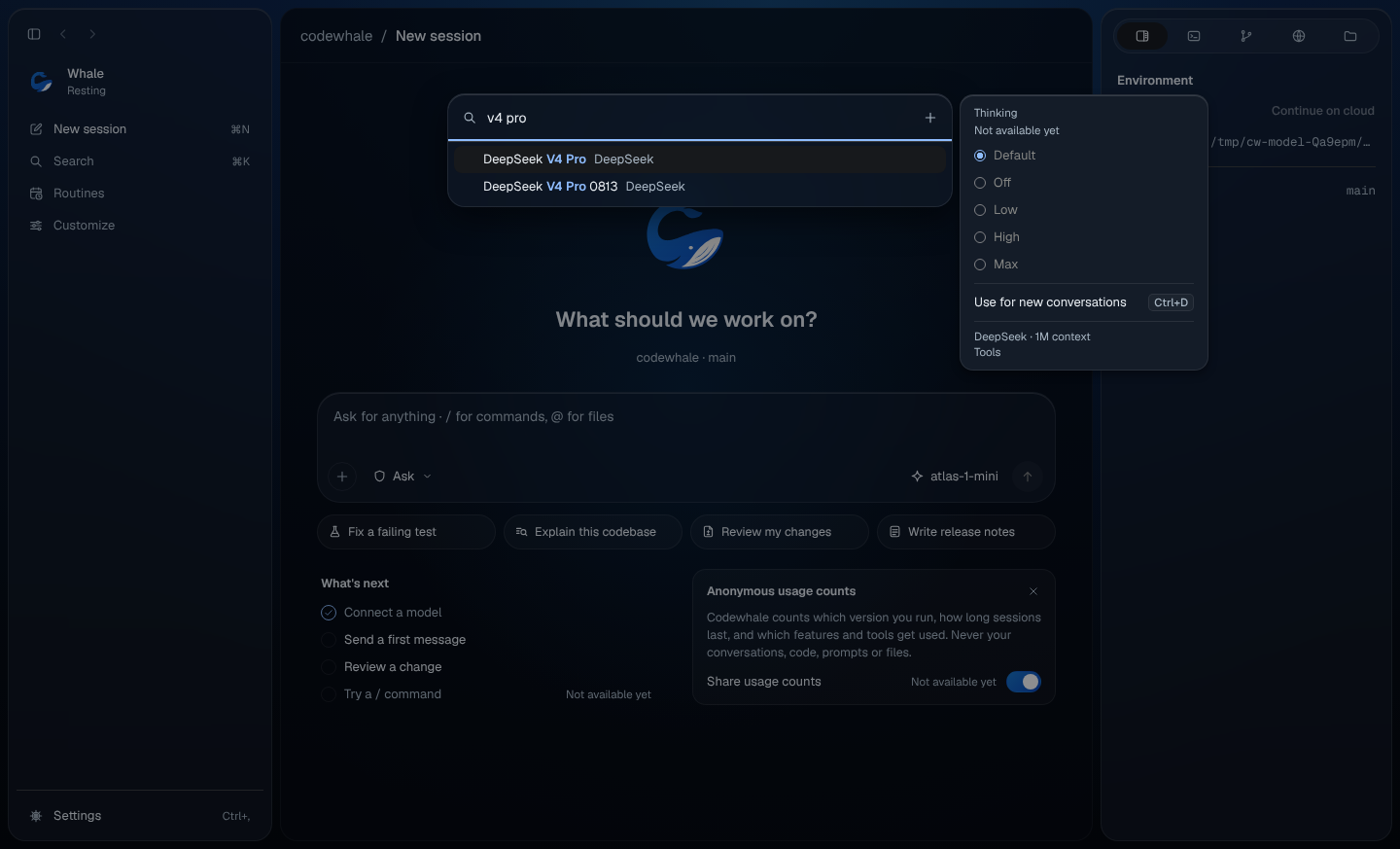
Open the model picker
Press the model chip in the composer (it shows the model's name), or press
⌘' (Ctrl+' on Windows and Linux). In the palette it's Choose model, or
type /model.
If nothing is connected yet, the chip says Connect a model instead. See Connect a model.
Find a model
Type in Search models. Matching letters are highlighted, and each result shows its provider.
With nothing typed, the list starts with Current, the model this conversation uses. Then come your providers, the one you're using first, each with its newest models. A provider with more than eight models shows Show all {n}; choose it to see the rest. "No models match" means nothing fits what you typed.
Esc clears the search; Esc again closes the picker.
Switch the model for this conversation
In a conversation, choose a model with ↑ and ↓ and press Enter, or click it. The conversation switches to that model, and the picker closes.
On the launch card, before a conversation starts, choosing a model this way says "Not available yet". Use Use for new conversations instead.
Set the model for new conversations
Move to a model. Beside the list, press Use for new conversations, or press ⌘D (Ctrl+D). A toast says "New conversations use {name}", and a check mark shows next to Use for new conversations for that model.
The same choice is Model for new conversations in Settings › Models.
Thinking
Beside the list, Thinking lists the levels the highlighted model offers, such as Default, Low and High. Choosing a level per conversation says "Not available yet", and so does the thinking pill next to the model chip and Change thinking (⇧⌘D) in the palette.
To set how much new conversations think, use Settings › Models › Thinking level (Settings).
See what a model can do
Beside the list, under the buttons, the highlighted model shows its provider and how much it can read at once, for example "DeepSeek · 1M context", whether it takes images or uses tools, and its price when the provider publishes one.
In a group conversation
There's no model chip, and the picker doesn't open.
On the web
Not available yet.
On your phone
Not available yet.
Related
Previous: Connect a model · Next: Codewhale on your phone