Plugins
Add plugins that give your whale new commands, connectors, skills and agents. See what each one can do before it runs, and turn it off or remove it.
Works on: the desktop app, for plugins on this computer. The phone and the web: not available yet.
Open Plugins
Do one of these:
- Choose Customize in the sidebar, then Plugins.
- Pick Open plugins or Browse plugins in the command palette (⌘K, or Ctrl+K on Windows and Linux).
- Type
/pluginin the composer.
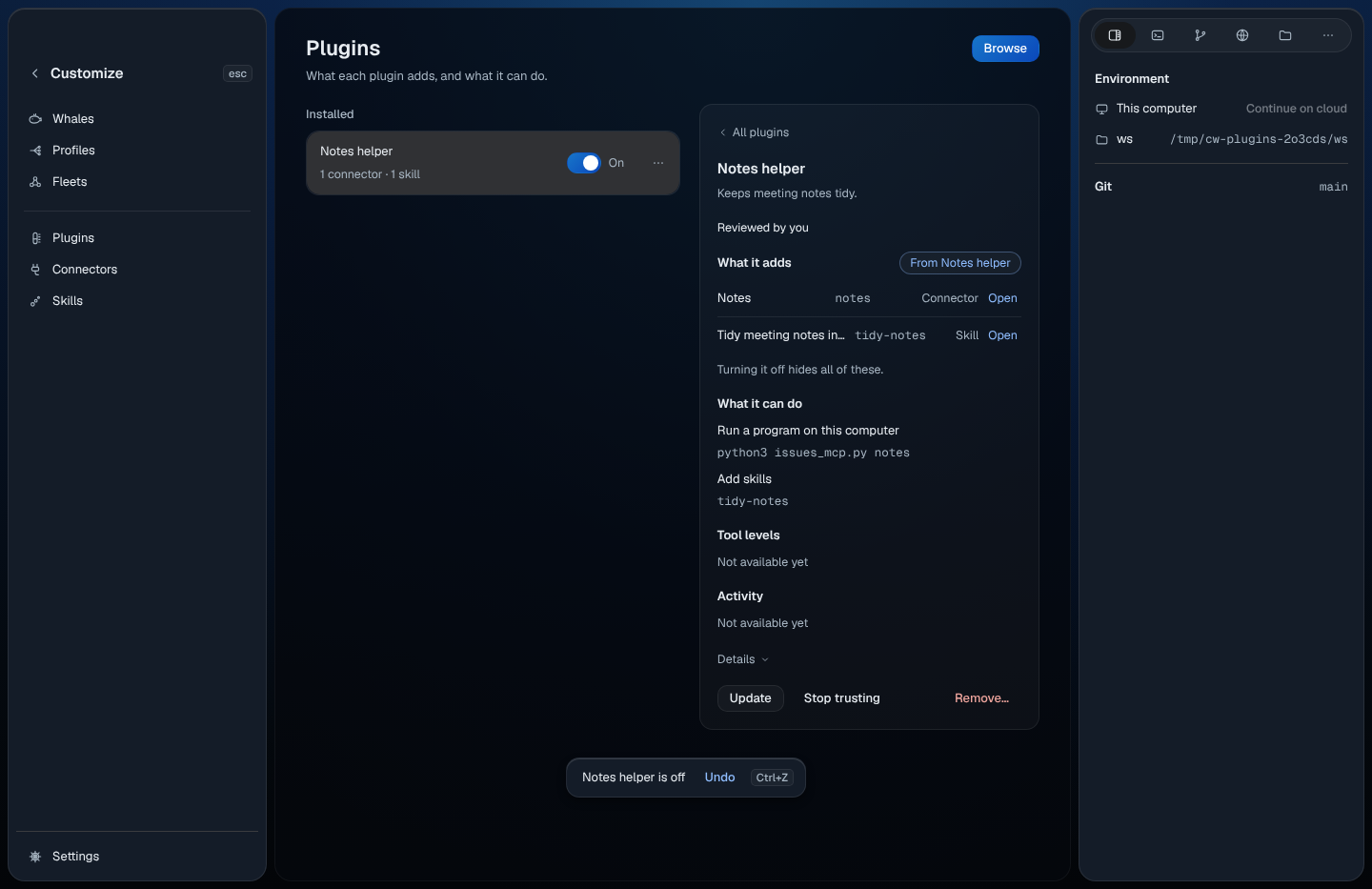
The page lists the plugins installed on this computer. Each row shows the plugin's name, what it adds ("1 connector · 1 skill") and a switch. A plugin you haven't reviewed yet shows Needs you · review it.
Settings › Tools & MCP has a Plugins row that says "Not available yet". Plugins live here, in Customize.
Install a plugin
- Choose Browse. The catalogs on this computer are listed with the plugins each one offers.
- Choose Install beside a plugin. To install from somewhere else, choose
Install from a link and give "A GitHub repository, a download link, or
a folder on this computer", for example
github:owner/repo. - "It installs turned off. You'll see what it can do before it runs." The review opens straight away.
To add a catalog, choose Add a catalog at the end of Browse and give the catalog file on this computer. To remove one, press its ⋯ and choose Remove catalog.
Review what a plugin can do
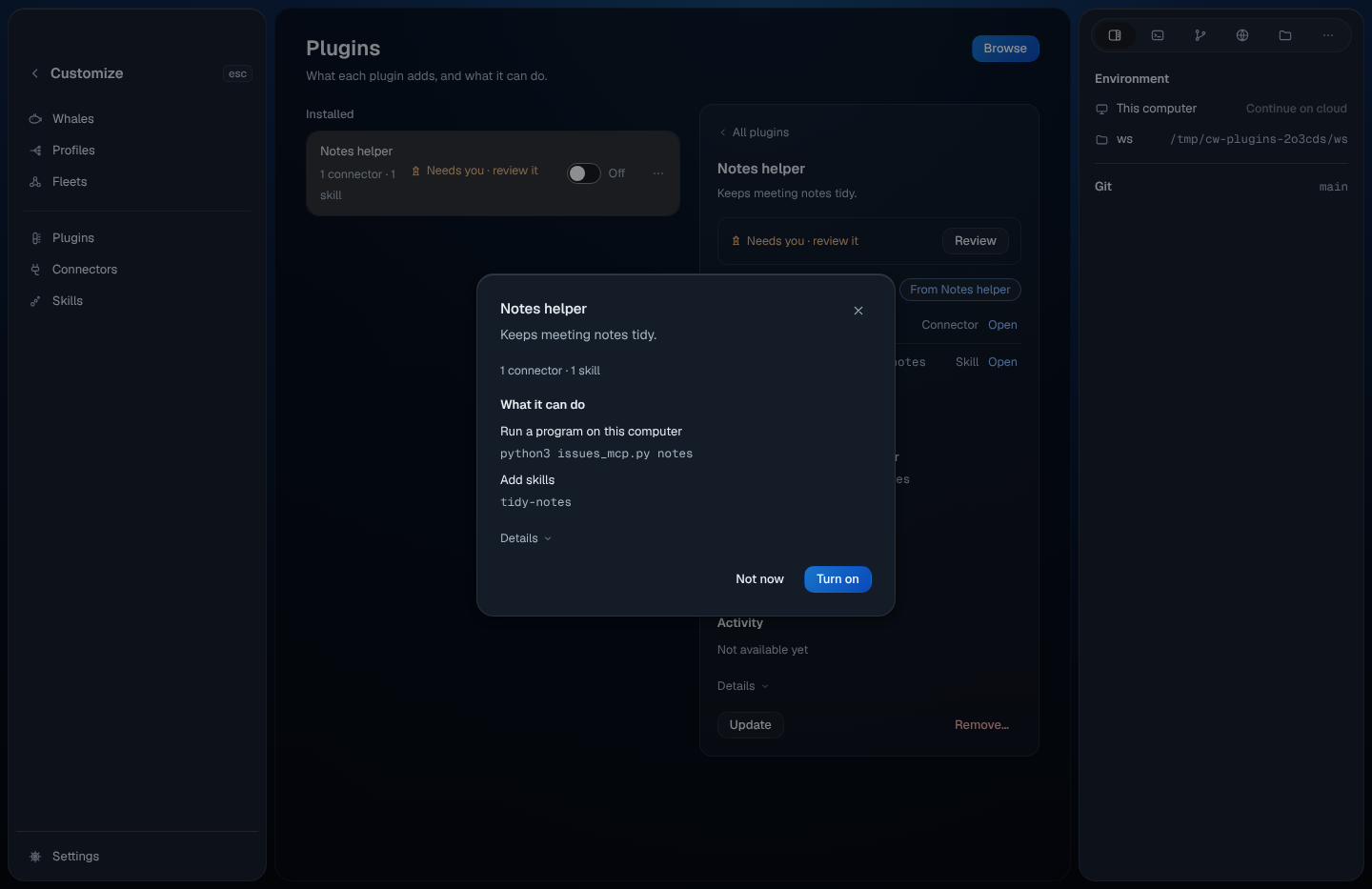
The review lists What it can do, read from the plugin itself:
- Run a program on this computer, with the exact command
- Reach a site, or Read and change files in a folder
- Read these settings (their names, never their values)
- Run its own steps when things happen
- Change what happens when work starts and stops
- Add commands, Add skills and Add agents
When a plugin can do none of the risky things, the review also says What it can't do: "Run programs, change your files or reach the internet." A part that can't run here is named: "One part won't run here: … Everything else works." Details shows where it came from, its version and its content hash.
Choose Turn on to trust exactly what you reviewed and turn it on. Choose Not now to leave it installed and off. If the plugin changes later, it shows Needs you · review again and stays off until you review it again.
Turn a plugin off or on
Use the switch on its row. Turning it off hides everything it adds, and a toast offers Undo. Turning a reviewed plugin back on needs no second review.
See what a plugin adds
Choose a plugin to open its page on the right:
- What it adds: each command, connector, skill, agent and hook, with Open to go to where it lives. Everything a plugin adds is marked From and the plugin's name wherever it shows, and you turn it off or remove it here, on the plugin.
- What it can do: the same list as the review.
- Update gets a new copy from where it came from. Stop trusting keeps it installed but off until you review it again.
- Remove… asks once: "Everything it adds goes away. You can install it again later."
Right-click a plugin
Right-click a row, press its ⋯, or focus it and press Shift+F10:
| Item | Key |
|---|---|
| Turn off or Turn on | O |
| Review access… | A |
| Stop trusting | T |
| Remove… | ⌘⌫ (Ctrl+Backspace) |
Not available yet
- Tool levels and Activity on a plugin's page.
- Update, Show in folder and Roll back in a plugin's menu. Use Update on the plugin's page instead.
Related
Previous: The whale on your screen · Next: Connectors and skills