Connect a model
Connect a provider, or a model running on your computer, without leaving the app.
Works on: the desktop app. Web and phone: not available yet.
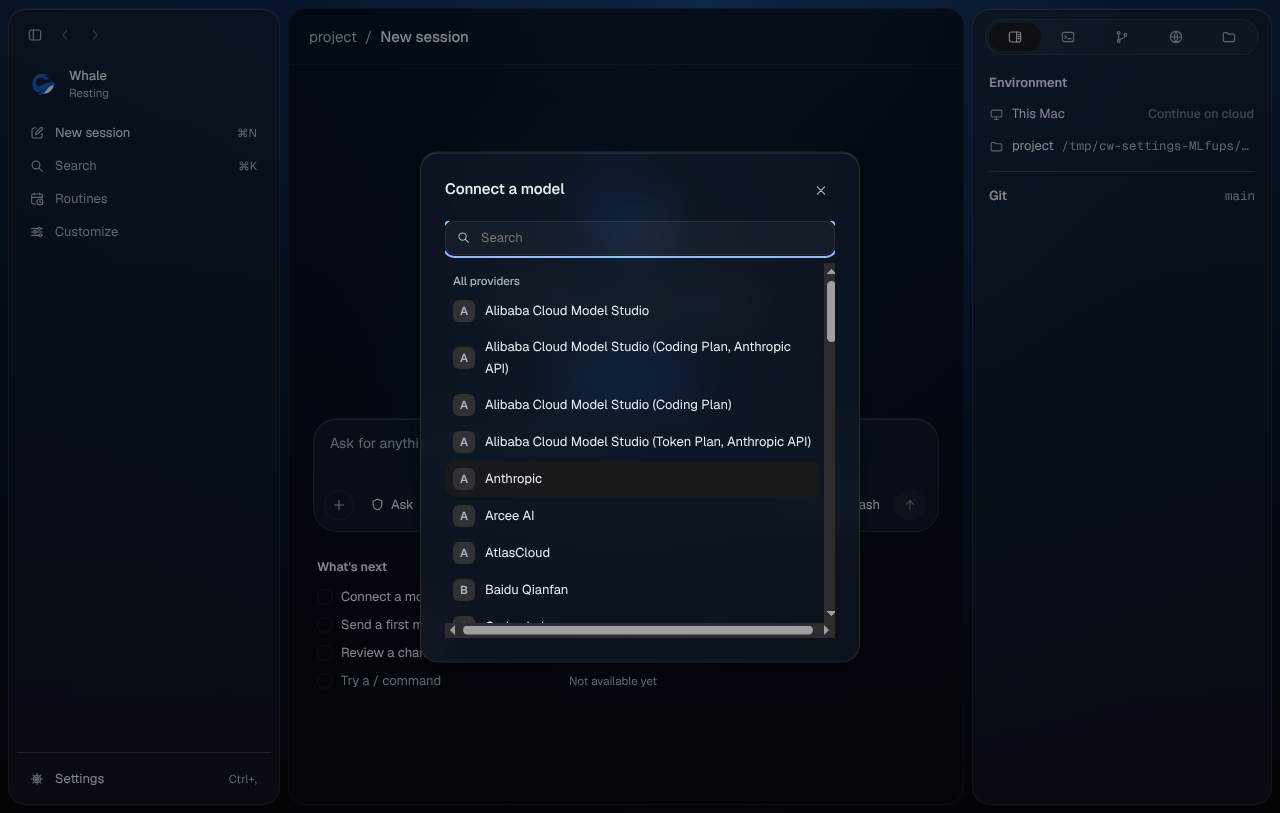
Open Connect a model
Connect a model opens from any of these:
- the Connect a model button on the launch card ("Connect a model to start.")
- the model chip in the composer, when nothing is connected yet
- the + in the model picker (Choose a model)
- Settings › Models
- the palette (⌘K, Ctrl+K): "Connect a model", or
/provider
Connect a provider
- Type in Search to narrow the list. Providers you've already set up sit under Set up; everything else is under All providers.
- Choose a provider. Use ↑ and ↓ to move and Enter to choose.
- Do the one step it asks for:
- API key: paste the key into API key and press Connect. The button wakes up once there's something in the field.
- Sign in with {provider} (some providers offer this as well as a key): finish signing in in your browser. The dialog says "Finish signing in to {provider} in your browser." Open browser again and Copy link help if the page didn't open. If it takes too long you'll see "That took too long. Try again."
- A model on your computer, such as Ollama: there's no step. Codewhale checks that it's running and goes straight to its models. If it isn't running you'll see "Start {provider}, then try again."
- A toast says "You can use {provider} now". Pick a model from the list (type in Search models to narrow it).
In a conversation, the model you pick is used for that conversation. Before a conversation starts, it becomes the model new conversations use.
Esc closes the dialog at any step, and anything you typed in the composer stays there. Back returns to the list.
If the key doesn't work
| What you see | What to do |
|---|---|
| "That key didn't work. Check it and paste it again." | Copy the key again from the provider and paste it. |
| "This key can't use {provider} models. Check its plan or permissions." | Check the key's plan or permissions with the provider. |
| "Can't reach {provider}. Check your connection and try again." | Check your internet connection. |
| "Couldn't connect {provider}. Try again." | Try again in a moment. |
Providers set up somewhere else
Some providers show one short line under their name instead of a step:
| Line | What it means |
|---|---|
| Uses your Codewhale account | It comes with your account. |
| Uses your … sign-in | It uses a sign-in you made in that provider's own tool. |
| Managed by its plugin | A plugin set it up; change it in Plugins. |
| Set elsewhere | It was set up outside the app, and is changed there. |
| Needs fixing before it can be used | Its setup is incomplete. |
| Sign in again | Its sign-in ran out. Choose it to connect it again. |
Replace a key or disconnect
In Settings › Models, open the ⋯ menu on a connected provider:
- Replace key (R) opens "Replace {provider} key". Paste the new key and press Connect.
- Disconnect… asks "Disconnect {provider}?" with "You'll need the key to connect again." Cancel has the focus, so Enter keeps the key.
To choose the model and thinking level new conversations start with, see Choose a model and Settings.
On the web
Not available yet.
On your phone
Not available yet.
Related
Previous: Sign in · Next: Choose a model