Your account and cloud computers
See your cloud computers, wake one when you need it, put it to sleep when you don't, and keep track of your cloud time.
Works on: the phone app, signed in. On the desktop, these controls need you signed in, and signing in on the desktop isn't available yet; see Sign in. The web: not available yet.
Use Codewhale without signing in
Everything on your own computer works without an account: your folders, conversations, your own model keys or a local model, plugins, connectors and skills. Nothing asks you to sign in until you press something that only works with one, and then it asks right there, beside what you pressed.
See your cloud computers
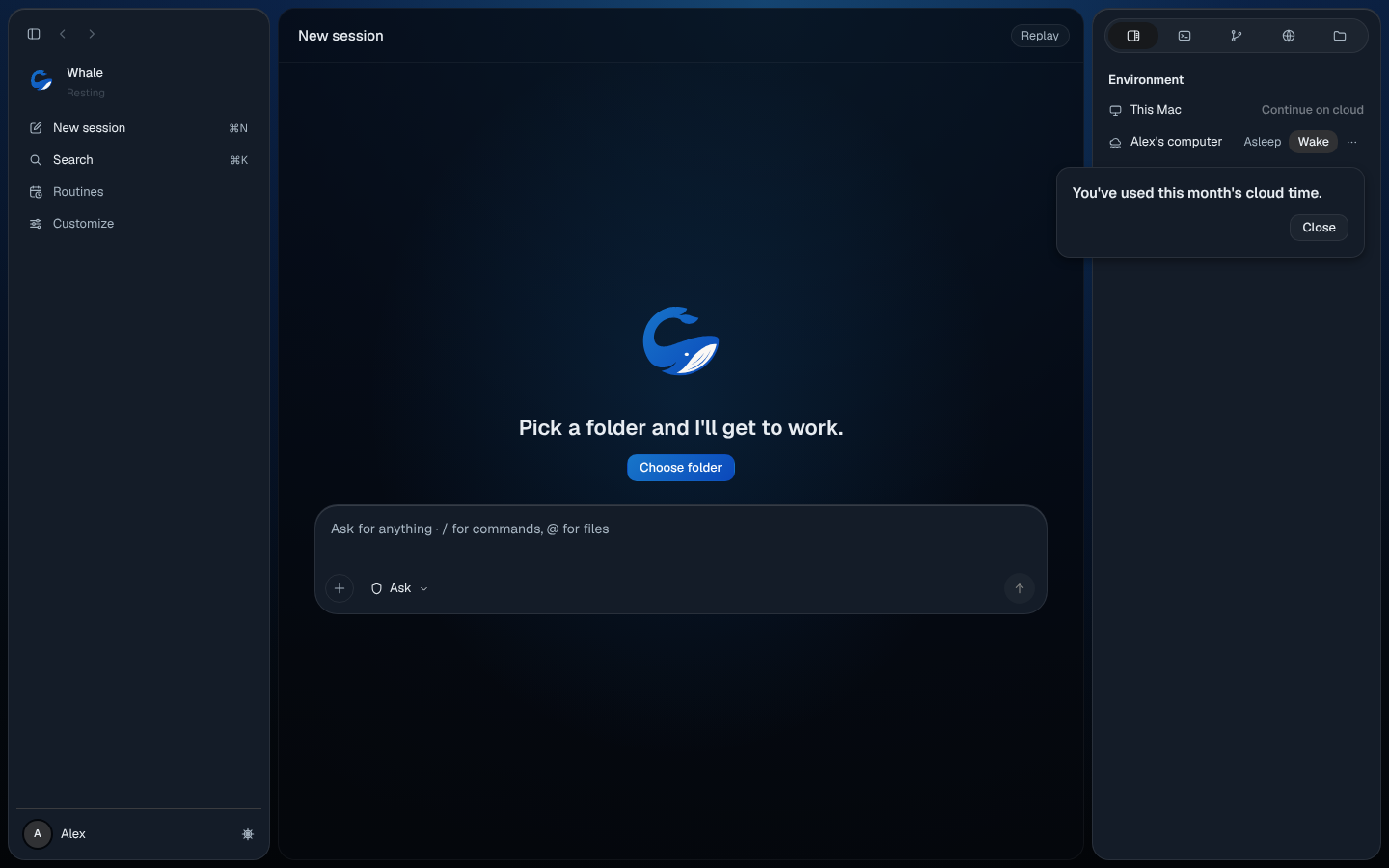
Signed in on the desktop, the side panel's Environment lists your cloud computers below this computer, and Settings › Account shows the same list under Cloud computers. Each one says how it is:
| Word | What it means |
|---|---|
| Awake | It's on and ready for work. |
| Asleep | It's resting until you wake it. |
| Waking up | You asked it to wake, and it's starting. |
| Blocked | It couldn't start. |
| Reconnecting | Codewhale can't reach your account right now. It keeps trying, and your work on this computer carries on. |
With none yet, it says "No cloud computers yet".
Wake a computer
A sleeping computer wakes only when you ask. Press Wake on its row, or right-click the row and choose Wake (W). It reads Waking up, then Awake.
If it doesn't wake, Codewhale says "codewhale-dev didn't wake up." with Try again.
Put a computer to sleep
Right-click the computer's row (or press its ⋯ button, or Shift+F10 on the row) and choose Put to sleep (S). The same menu has Copy name (C).
When your cloud time is used up
If you've used this month's cloud time, pressing Wake shows "You've used this month's cloud time." beside the button, and the computer stays asleep. Press Close or Esc. Your work on this computer isn't affected.
On the phone, the same words show when you try to start a conversation on a cloud computer.
If you don't have cloud computers yet
Cloud computers are invite-only right now. Settings › Account says "Cloud computers are invite-only right now." When the waitlist is open, press Join the waitlist; the row then reads "You're on the waitlist." When it isn't open, there's nothing to press.
Sign out on the desktop
Open Settings › Account and press Sign out, or press your name at the
bottom of the sidebar and choose Sign out. The /logout command does the
same.
The account row says: "Your conversations, folders and model keys stay on this computer." Signing out only signs you out of your account; the model you use doesn't change. If your sign-in runs out or the network drops, nothing pops up, and the work on this computer keeps going.
On your phone
Press your initials at the top of the conversation list to open your account:
- Your name and email.
- Organization: your organization's name and your role, or "You're not in an organization."
- Membership: Not available yet.
- Sign out. "Your conversations stay in your account. Signing out leaves nothing on this phone."
Start a conversation on a cloud computer from New session: see Codewhale on your phone. Waking a computer or putting it to sleep from the phone is not available yet.
On the web
Not available yet.
Not available yet
- Signing in on the desktop. Settings › Account › Sign in says "Not available yet".
- Creating a cloud computer in the app.
- Membership on the phone.
Related
Previous: Routines · Next: Choose where the work runs