Choose where the work runs
See where Codewhale does the work: this computer, your cloud computers and your other computers. On the phone, pick the cloud computer a new conversation starts on.
Works on: the desktop app for this computer. Cloud computers need you signed in: on the phone you can pick one for a new conversation; on the desktop, signing in isn't available yet (see Sign in). The web: not available yet.
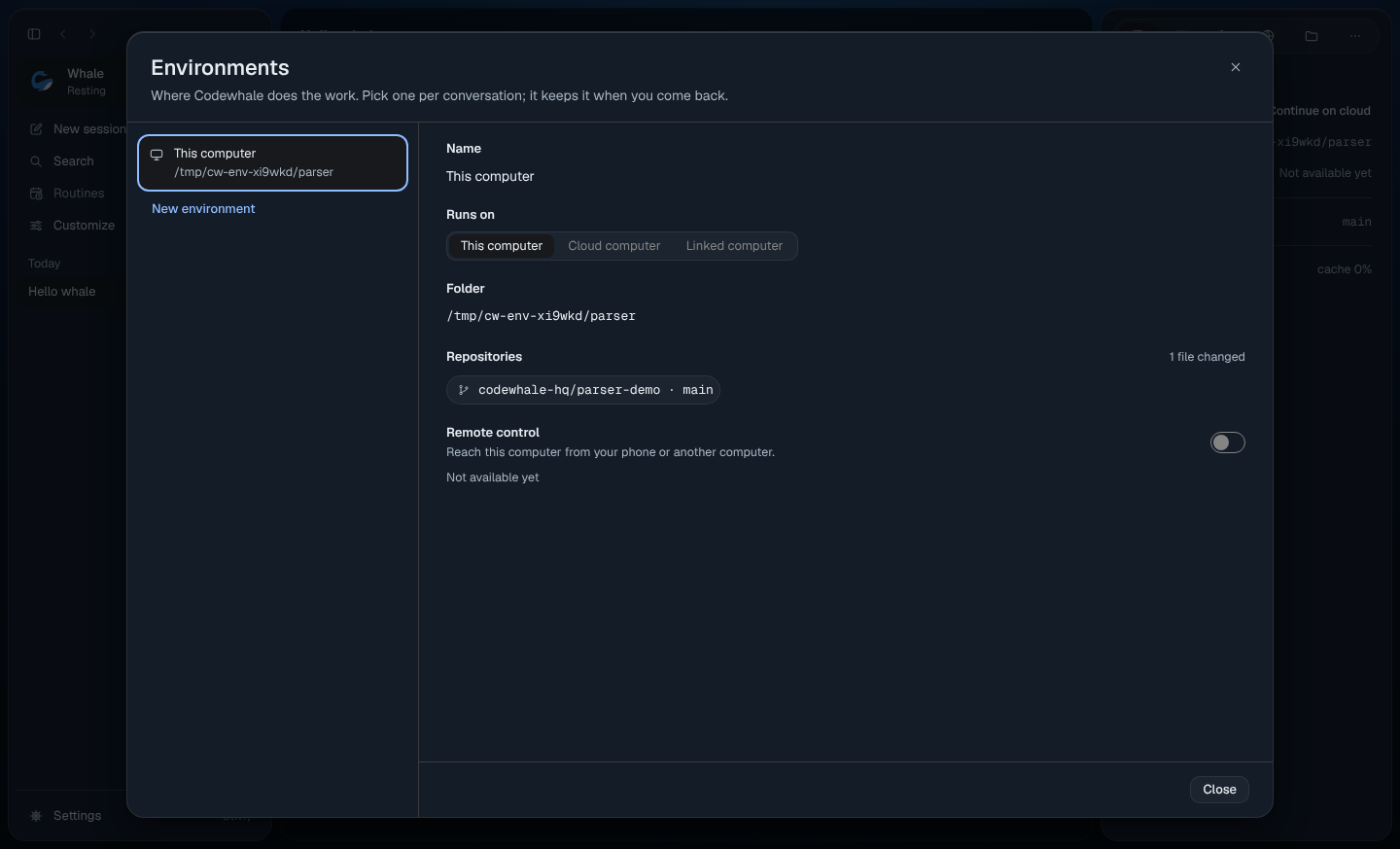
Open Environments
On the desktop, press the Environment heading in the side panel's
Overview, or open the palette (⌘K or Ctrl+K) and choose Open
environments. The /remote-env command opens it too. Esc closes it.
The list on the left shows:
| Row | What it is |
|---|---|
| This Mac (This computer on Windows and Linux) | This computer, with the folder you have open. |
| A cloud computer, such as codewhale-dev | A computer Codewhale runs for you. Its line says Awake or Asleep, or when you last used it. |
| A linked computer | Another computer of yours. Its line says when it was last seen. "Change it on that computer." |
Right-click a row (or press Shift+F10) for Open (↩), Test setup (T, cloud computers only) and Copy name (C).
See this computer
This Mac shows the folder you're working in, its repository and branch, and how many files have changed. It comes straight from your open folder; there's nothing to set up.
Remote control, reaching this computer from your phone or another computer, is not available yet.
Set up and test a cloud computer
Not available yet. Codewhale's servers don't accept new or changed environments yet, so New environment, Save environment and Test setup say "Not available yet". A new environment that hasn't been saved says "Save it to test the setup." in place of the button.
Continue on cloud and Bring it back
Not available yet. On the desktop, Continue on cloud shows in the side panel's Environment. If you aren't signed in, pressing it asks you to sign in right there ("Keep working while your laptop sleeps"), and signing in on the desktop isn't available yet.
"Conversations with other people stay on cloud computers," so a group never offers Bring it back.
On your phone
Press + (New session). Under Where, choose the cloud computer to start on. Linked computers show "Not available yet". See Codewhale on your phone.
On the web
Not available yet.
Not available yet
- Creating, saving and testing cloud environments.
- Continue on cloud and Bring it back: moving a conversation between this computer and a cloud computer.
- Remote control.
- Choosing a computer when you start a conversation on the desktop. Start on this computer and use Continue on cloud.
- Editing a linked computer happens on that computer.
Related
- Your account and cloud computers
- The work pane: Overview and its Environment section
- Work together in a group
Previous: Your account and cloud computers · Next: Work together in a group