Updates
Get the newest Codewhale when it suits you. Nothing installs until you say so.
Works on: the desktop app. The Linux AppImage is checked; macOS and Windows are not checked yet. The phone and the web: not available yet.
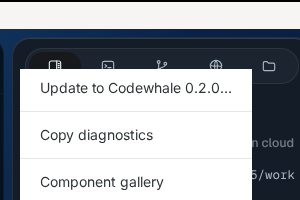
See whether there's a new version
Codewhale looks for a new version a little after it opens, and again every few hours. It never opens a window or downloads anything when it checks by itself. When there's something new, the first item in the Help menu reads Update to Codewhale {version}….
When there's something new, a quiet row also appears at the top of the window: Update to Codewhale {version}, with Download and Later. Later hides the row in that window until something changes.
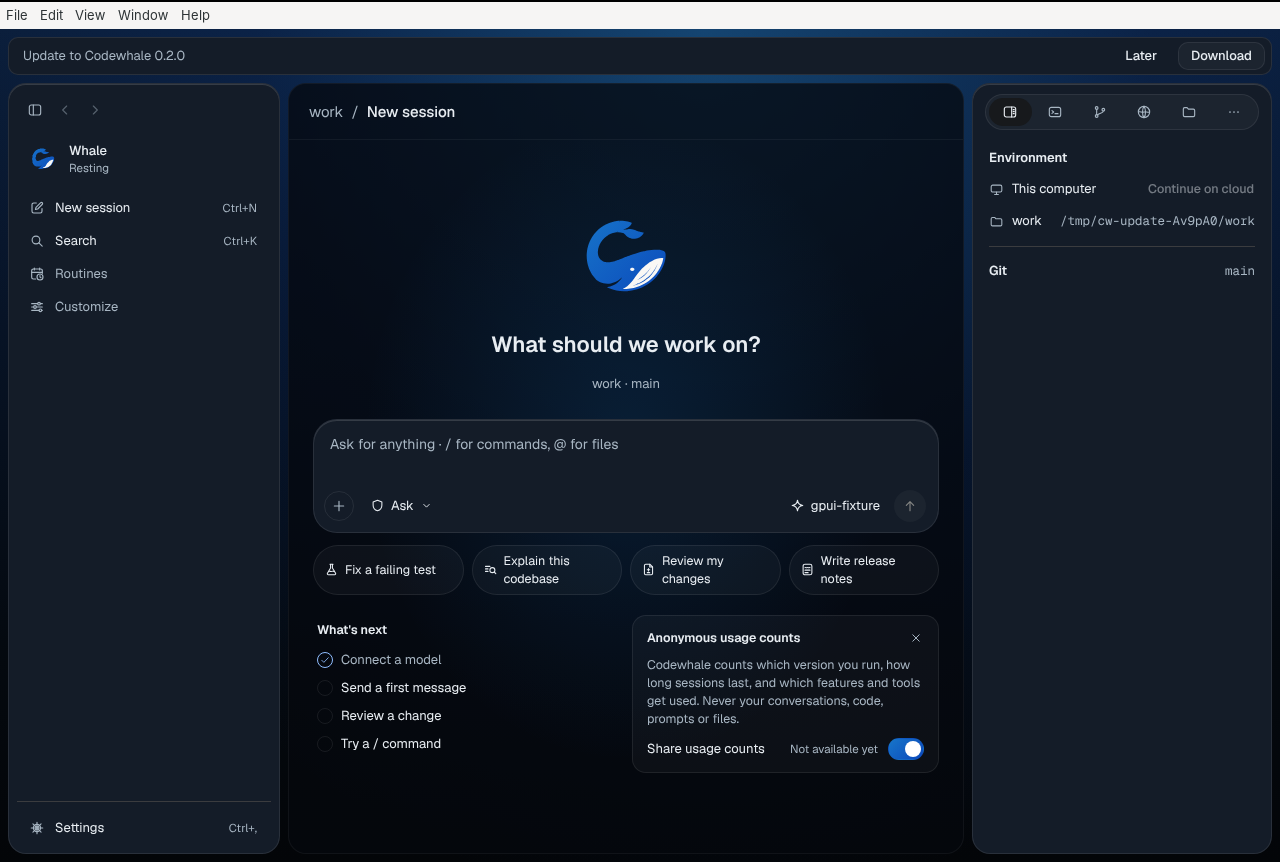
To look right now, choose Help › Check for updates…, or Check now in
Settings › Advanced, or type "Check for updates" in the palette (⌘K, or
Ctrl+K), or type /update. If you already have the newest version,
Codewhale says "You have the latest Codewhale." with your version number.
If the menu says "Not available yet", this copy of Codewhale doesn't get updates yet. Get the new version the same way you got this one.
Download an update
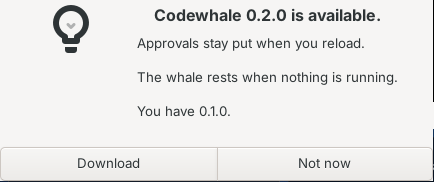
Choose Help › Update to Codewhale {version}…. You see what's new and the version you have. Choose Download, or Not now to leave it for later. While it downloads, the Help menu shows how far along it is.
Codewhale checks every download against what was published. If they don't match, it says "The download didn't match what was published, so Codewhale didn't keep it." and nothing changes. Choose Try again to start over.
Install it

When the download is ready, Codewhale asks before it installs. Choose Restart to update, or Later to keep working. The Help menu then reads Restart to update…, and the row at the top of the window offers Restart to update, until you're ready.
Everything in Codewhale updates together. Your conversations, folders and settings stay as they are.
Update while work is running
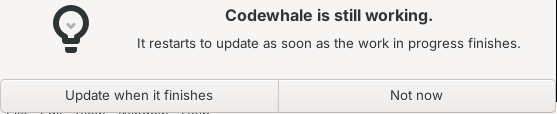
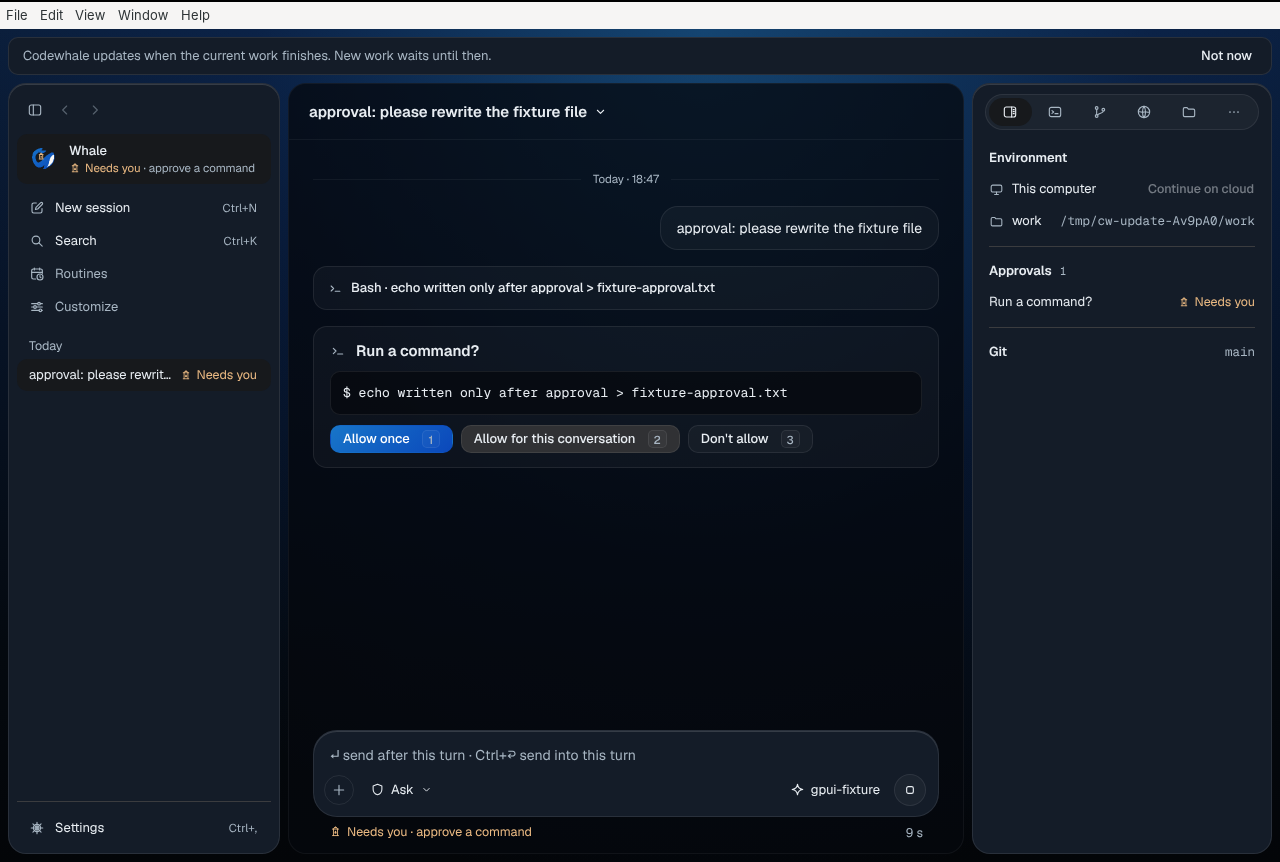
If a reply, an approval, a helper agent or a command is still going, Codewhale doesn't restart under it. Choose Update when it finishes, and Codewhale restarts by itself as soon as the work is done. The Help menu reads Updating when the work finishes in the meantime; choose it to change your mind.
If Codewhale can't tell whether something is still running (for example, while a folder is still opening), it waits.
While it waits, nothing new starts: a new message or a new conversation isn't sent, and the row at the top of the window says why: "Codewhale updates when the current work finishes. New work waits until then." Your message stays in the composer. You can still answer approvals and questions, and Stop still works. Choose Not now in the row to change your mind and keep working.
Stable and beta
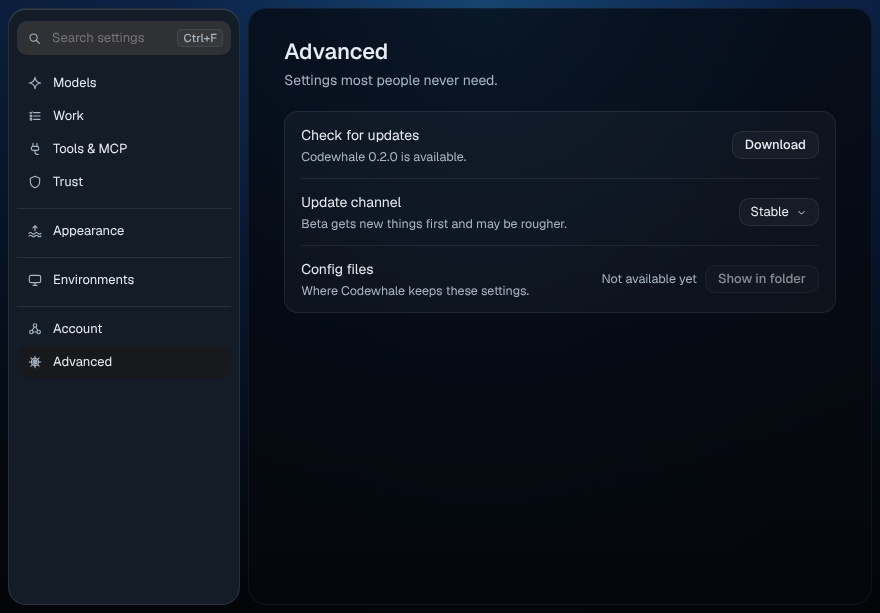
Choose Settings › Advanced › Update channel. Stable is the default for a stable build; Beta gets new things first and may be rougher. Your choice is kept on this computer and applies to the next check. Switching from beta back to stable never installs an older version; you move to stable with its next release.
Settings › Advanced › Check for updates shows what's happening (checking, available, downloading, ready, or what went wrong) with the one button that fits: Check now, Download, Restart to update, Not now or Try again. In a copy of Codewhale that doesn't get updates, both rows say "Not available yet".
Keyboard
Open the Help menu with Alt (Linux and Windows) and the arrow keys. In every update window, Enter chooses the highlighted button and Esc chooses Not now or Later.
For people testing Codewhale
A build only checks for updates when CODEWHALE_UPDATE_URL names an update
feed: an https:// address, or a loopback http://127.0.0.1 address for
local tests. CODEWHALE_UPDATE_CHANNEL=beta or stable sets the channel
until someone chooses one in Settings. With no feed set, Check for
updates says "Not available yet" and nothing is contacted. A check sends nothing about you or your account.
Related
Previous: Troubleshooting · Next: Diagnostics