Connectors and skills
Connect the apps and tools your whale can reach, choose what each tool may do, and manage the skills your whale picks up.
Works on: the desktop app, for connectors and skills on this computer. The phone and the web: not available yet.
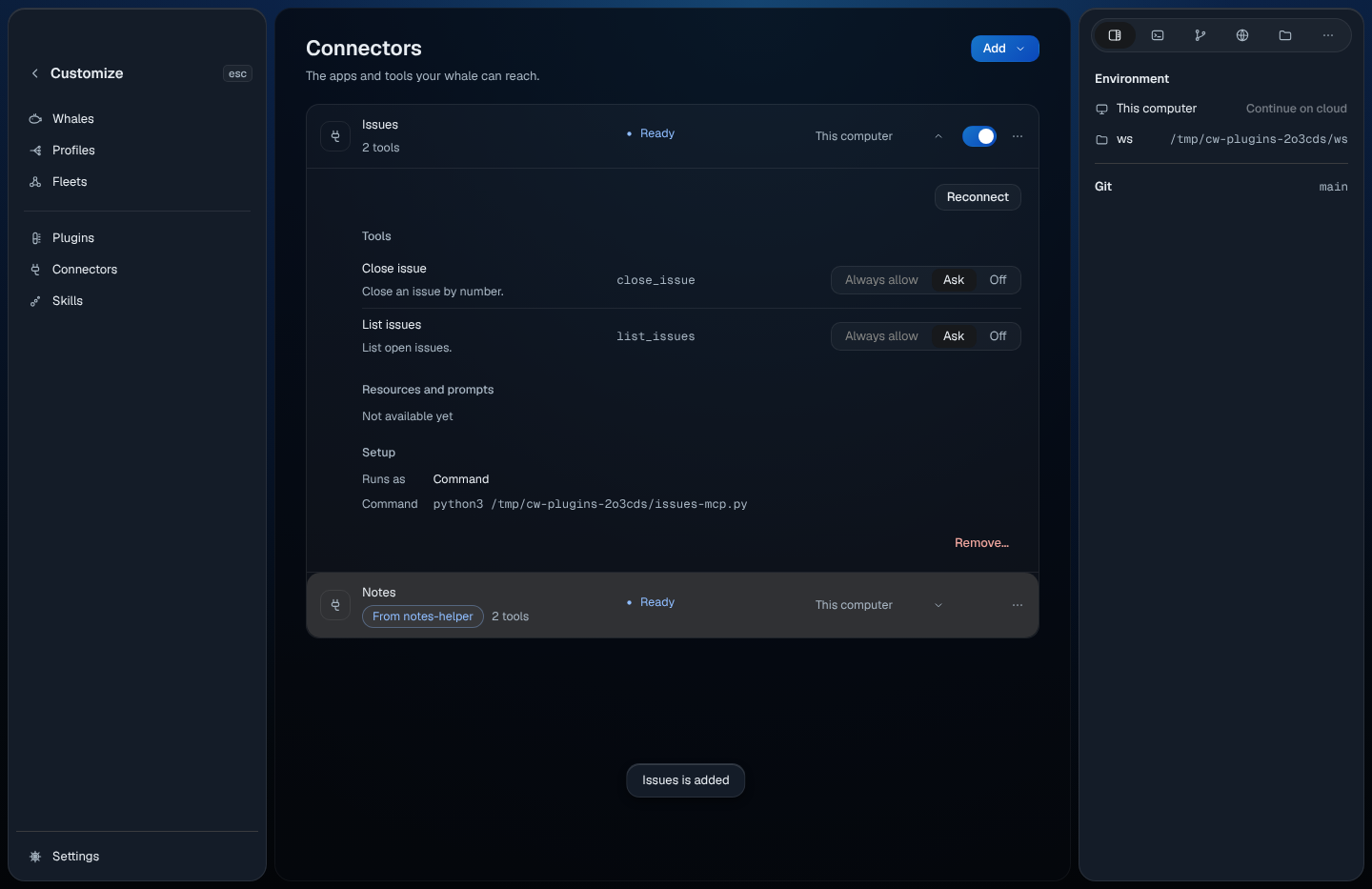
Open Connectors
Choose Customize in the sidebar, then Connectors, or pick Open connectors in the command palette (⌘K, or Ctrl+K on Windows and Linux).
Settings › Tools & MCP shows the same list under MCP servers. There a connector is called a server: Add server adds one, and choosing a name opens its tools.
Each row shows the connector's name, how many tools it has, its state and where it runs (This Mac, or This computer):
| State | Means |
|---|---|
| Ready | Its tools are available. |
| Running | Codewhale is reaching it right now. |
| Needs you · sign in | It needs you to sign in. |
| Blocked | It couldn't start. The reason and the time are on its page. |
| Resting | It hasn't been started yet. |
| Off | Its switch is off. |
A connector a plugin added shows From and the plugin's name. It has no switch of its own: "Turn it off or remove it on the plugin."
Add a connector
Choose Add, then:
- By hand: give it a Name, choose How it runs and fill in the
rest. Command runs a program on this computer, for example
npx -y @modelcontextprotocol/server-everything. Web address takes anhttps://address. Older web (SSE) is "Only for older servers that still need it." - Import from another app: lists the connectors found in Claude and in
this project's
.mcp.json. "Each one is added turned off. Turn it on when you're ready." Choose Add, off or Skip for each. - From directory and From registry: Not available yet.
Choose what each tool may do
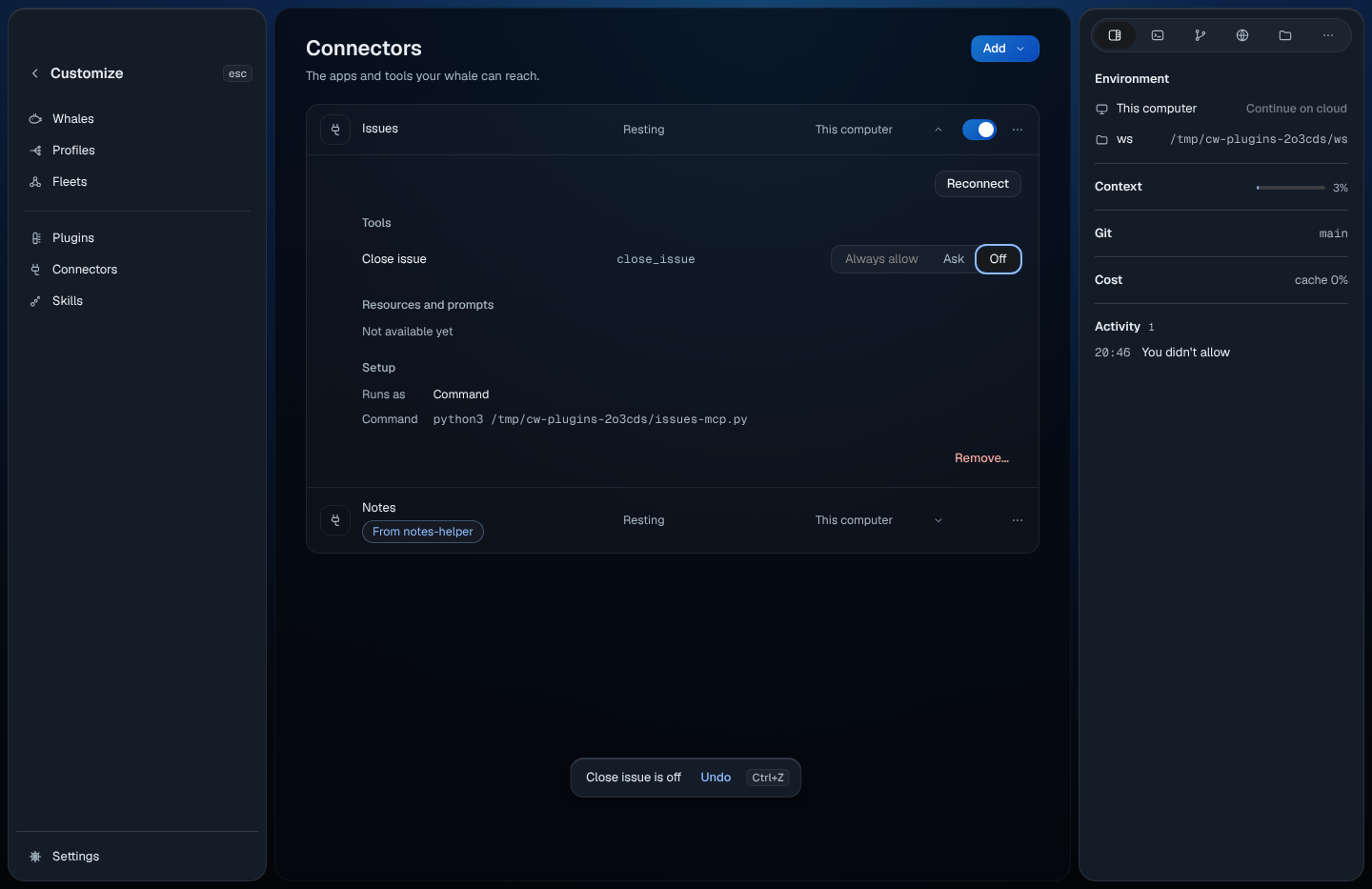
Open a connector to see its tools. Each tool has a level:
- Ask: your whale asks before it uses the tool. Every connector tool starts here.
- Off: your whale can't use it. A toast offers Undo.
- Always allow: Not available yet.
The page also has Reconnect, the Setup (how it runs, the command or address, and the names of the settings and headers it uses, never their values) and Remove…, which asks once: "Its tools stop working in new turns. You can add it again later."
Right-click a connector
| Item | Key |
|---|---|
| Reconnect | R |
| Turn off or Turn on | O |
| Show tools | T |
| Open plugin (when a plugin added it) | |
| Remove… | ⌘⌫ (Ctrl+Backspace) |
Sign in and Edit… in this menu: Not available yet.
Skills
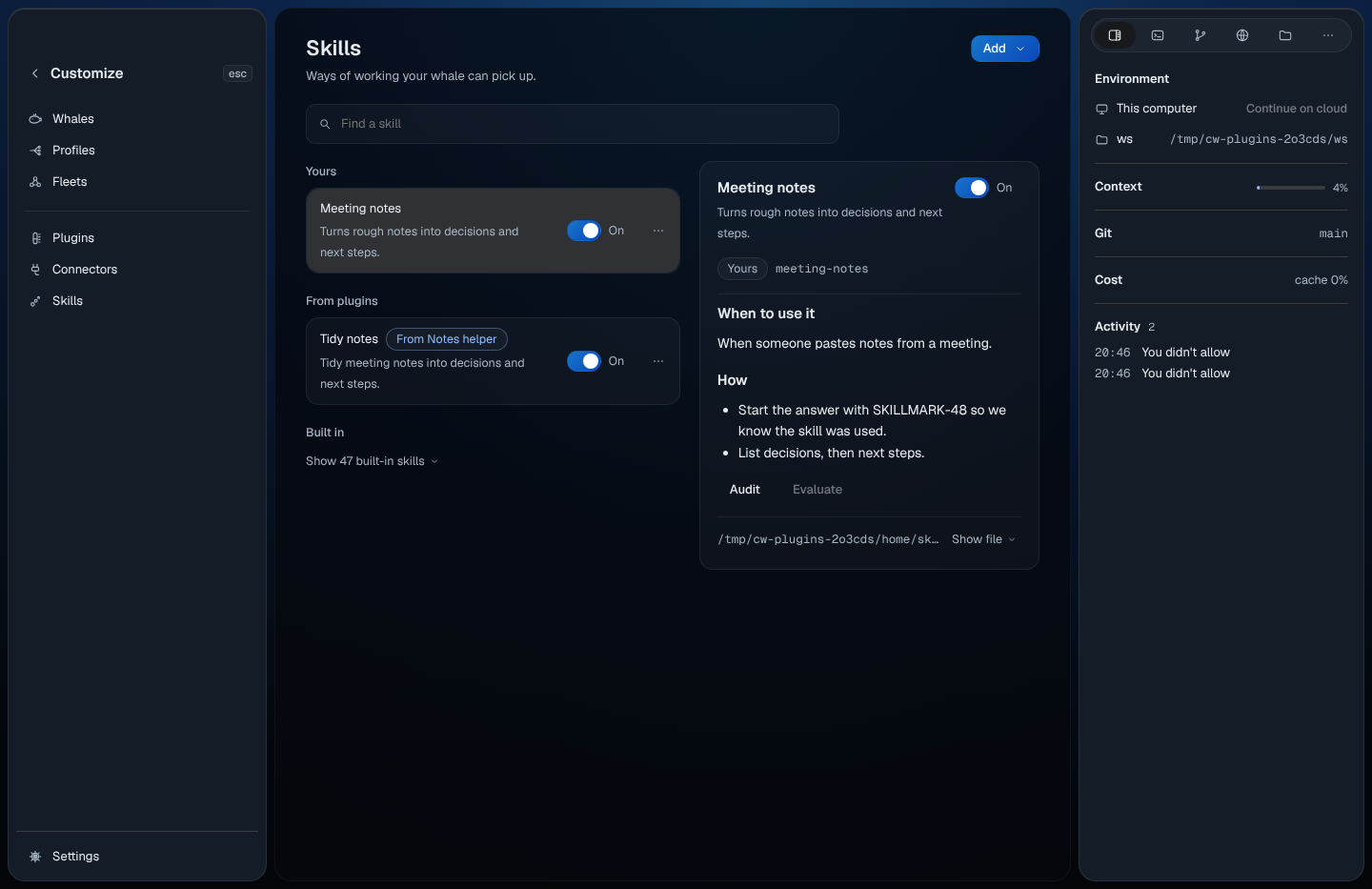
Choose Customize › Skills, pick Open skills in the palette, or type
/skills in the composer. Skills are grouped by where they come from:
- Yours: skills in the
skillsfolder of your Codewhale folder. - From plugins: marked with the plugin's name. They keep their own switch.
- From other apps: "Read-only here; change them in the app they came from."
- This project: skills that came with the folder. When some aren't trusted yet, the group says Needs you · review N skills, and each skill waiting for you shows Review in place of its switch.
- Built in: the skills Codewhale comes with, behind Show N built-in skills.
Type in Find a skill to search. Choose a skill to read its SKILL.md as a
page, with its switch and:
- Trust, when it needs it. "Trust records that you read it. It doesn't give the skill more access."
- Update, when it's offered.
- Audit: whether you trust it, whether its files changed since install, and its content hash.
- Uninstall…, which asks once.
- Show file.
Evaluate: Not available yet.
Add a skill
Choose Add, then:
- From GitHub or a link: give
github:owner/repoor a link, and choose Yours or This project under Where it goes. - Make your own: "Put a folder with a SKILL.md file here. It shows up in Yours right away."
- From registry: Not available yet.
Right-click a skill
| Item | Key |
|---|---|
| Turn off or Turn on | O |
| Trust | T |
| Audit | A |
| Show SKILL.md | S |
| Uninstall… | ⌘⌫ (Ctrl+Backspace) |
Use in this conversation: Not available yet.
Not available yet
- Always allow for a tool, and levels for a plugin's tools.
- Signing in to connectors that need it.
- Resources and prompts on a connector's page.
- Showing a connector's results as tables, charts or forms. Results show as text.