Conversations and folders
Find any conversation, pick up where you left off, and branch, rewind, tidy or remove it.
Works on: the desktop app; the phone app lists and opens conversations. Web: not available yet.
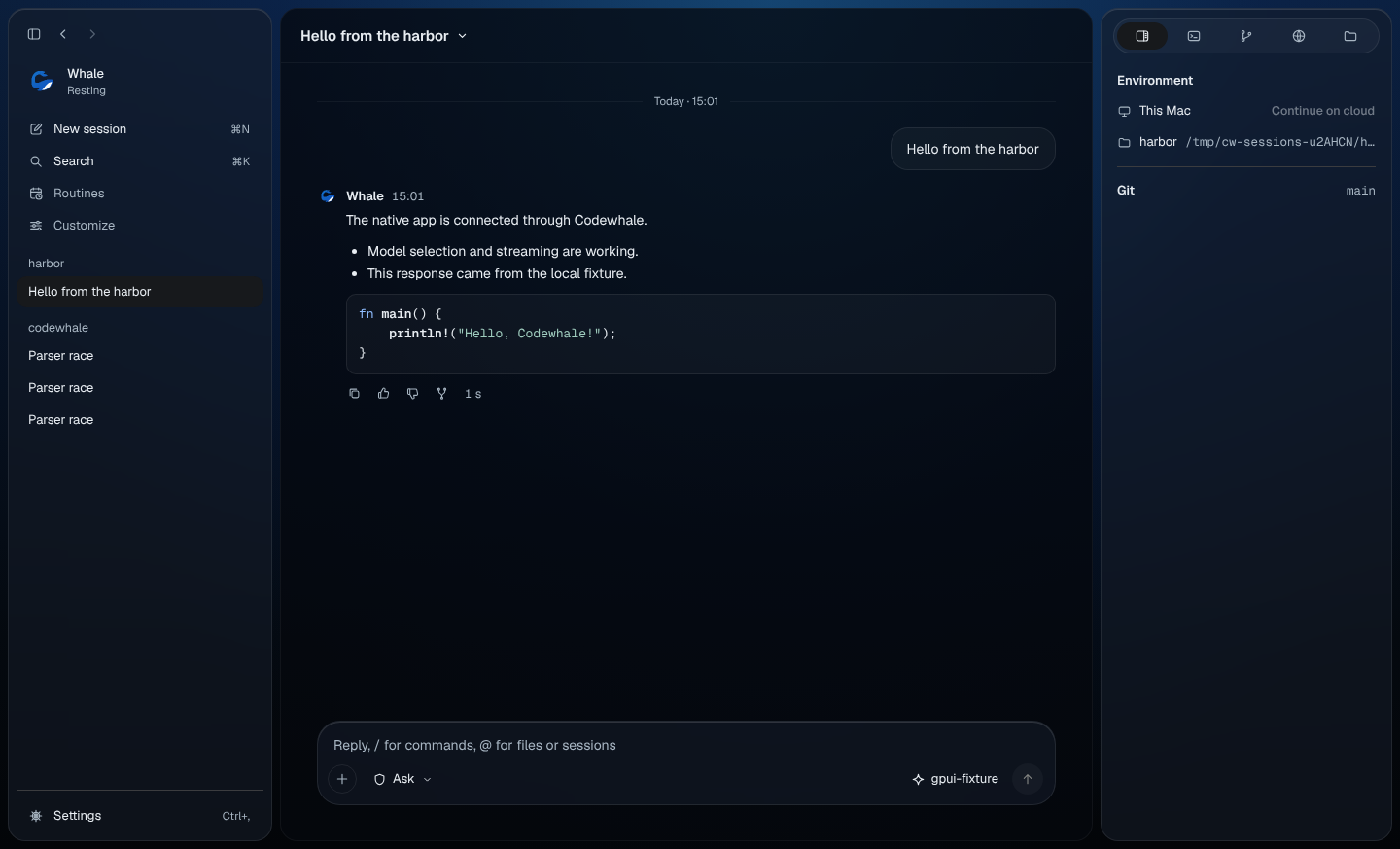
Find a conversation
Every conversation sits in the sidebar with its state beside it, such as Running, Needs you, Ready or Blocked. A resting conversation shows no word.
- With one folder, conversations are grouped by day: Today, Yesterday, then the date.
- Once you've worked in more than one folder, they're grouped by folder instead, with the folder you have open first.
- Conversations with other people sit under Groups.
Click a conversation to open it. Use ↑ and ↓ to move through the list. To search for one, press ⌘K (Ctrl+K) and type its name.
Rename a conversation
Right-click it (or select it and press Shift+F10) and choose Rename, or press ⌥⌘R (Ctrl+Alt+R on Windows and Linux). Type the new name and press Enter. Esc keeps the old name.
Fork a conversation
A fork is a new conversation that starts from this one. The original stays as it was, and so do your files.
- Fork › Everything so far copies the whole conversation.
- Fork › Fresh start, same setup starts empty, in the same folder with the same setup.
- Fork from here, under any reply, keeps the conversation up to that reply. What you asked next goes back into the composer, ready to change.
Edit an earlier message
With the composer empty and the whale not working, press Esc twice. Edit an earlier message opens above the composer with your messages. Use ↑ and ↓ to choose, then press Enter.
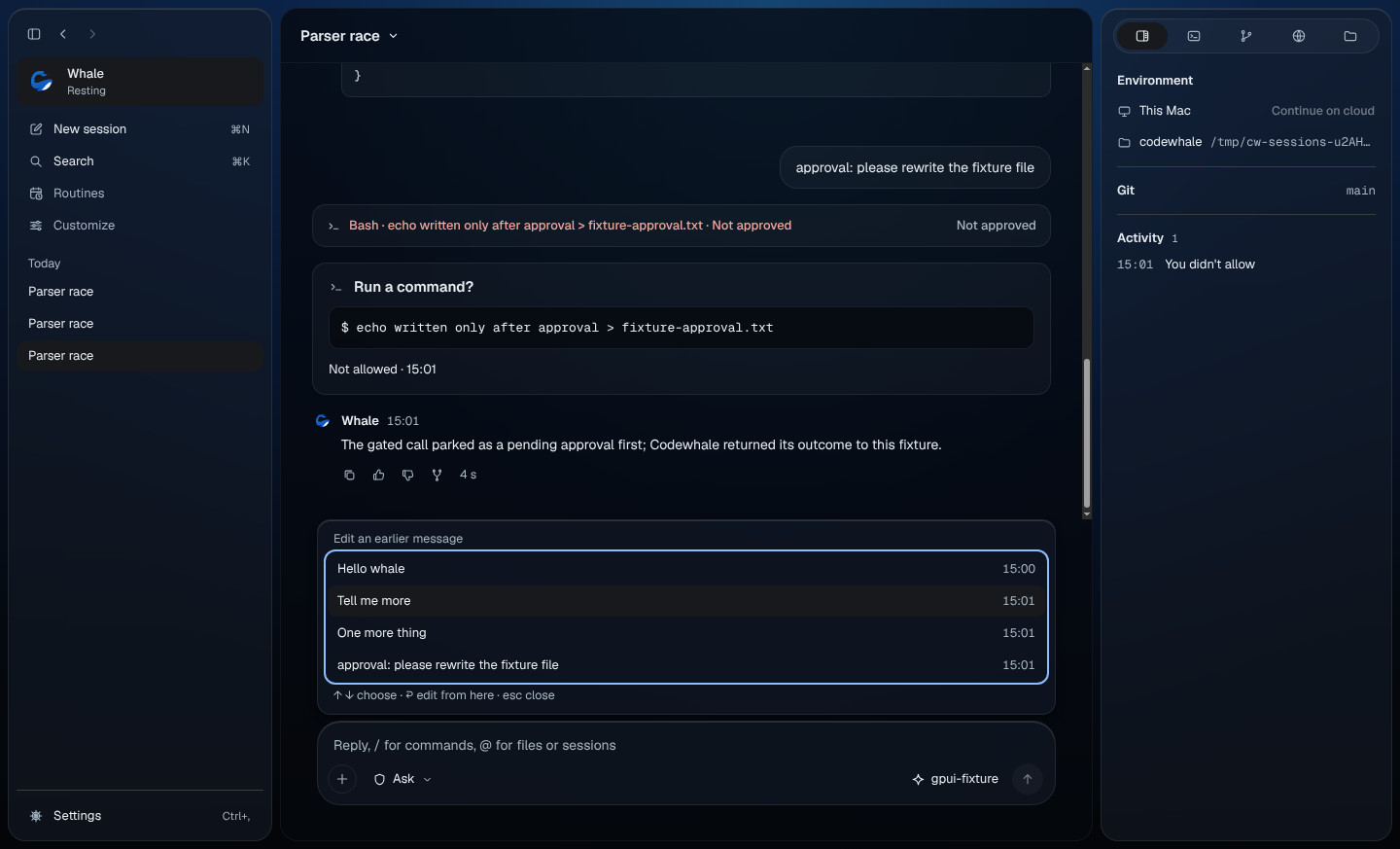
A new conversation continues from just before that message, with the message back in the composer to change and send. The original keeps everything. Esc closes the list.
Make room
Long conversations fill up. To make room yourself, choose Make room from the conversation's menu (the title at the top, or right-click it in the sidebar). Older parts are summarized. When a conversation is 80% full or more, the line under the composer shows "Context 80%" (or higher), with a Make room button whenever the whale isn't working. To have Codewhale do it on its own, see Make room automatically in Settings.
Archive and unarchive
Choose Archive, or press ⌥⌘E (Ctrl+Alt+E). The conversation leaves the list and a toast says "Archived" with Undo for 6 seconds; ⌘Z (Ctrl+Z) does the same. Archiving also ends any "Allow for this conversation" choices, so the next matching step asks again.
To see archived conversations, right-click empty space in the sidebar and tick Show archived. Open one's menu to Unarchive, rename, copy its ID or delete it.
Delete a conversation
Choose Delete…, or press ⌘⌫ (Ctrl+Backspace). Codewhale asks once, next to the conversation: "Delete “…”? This can't be brought back." Cancel has the focus, so Enter keeps it.
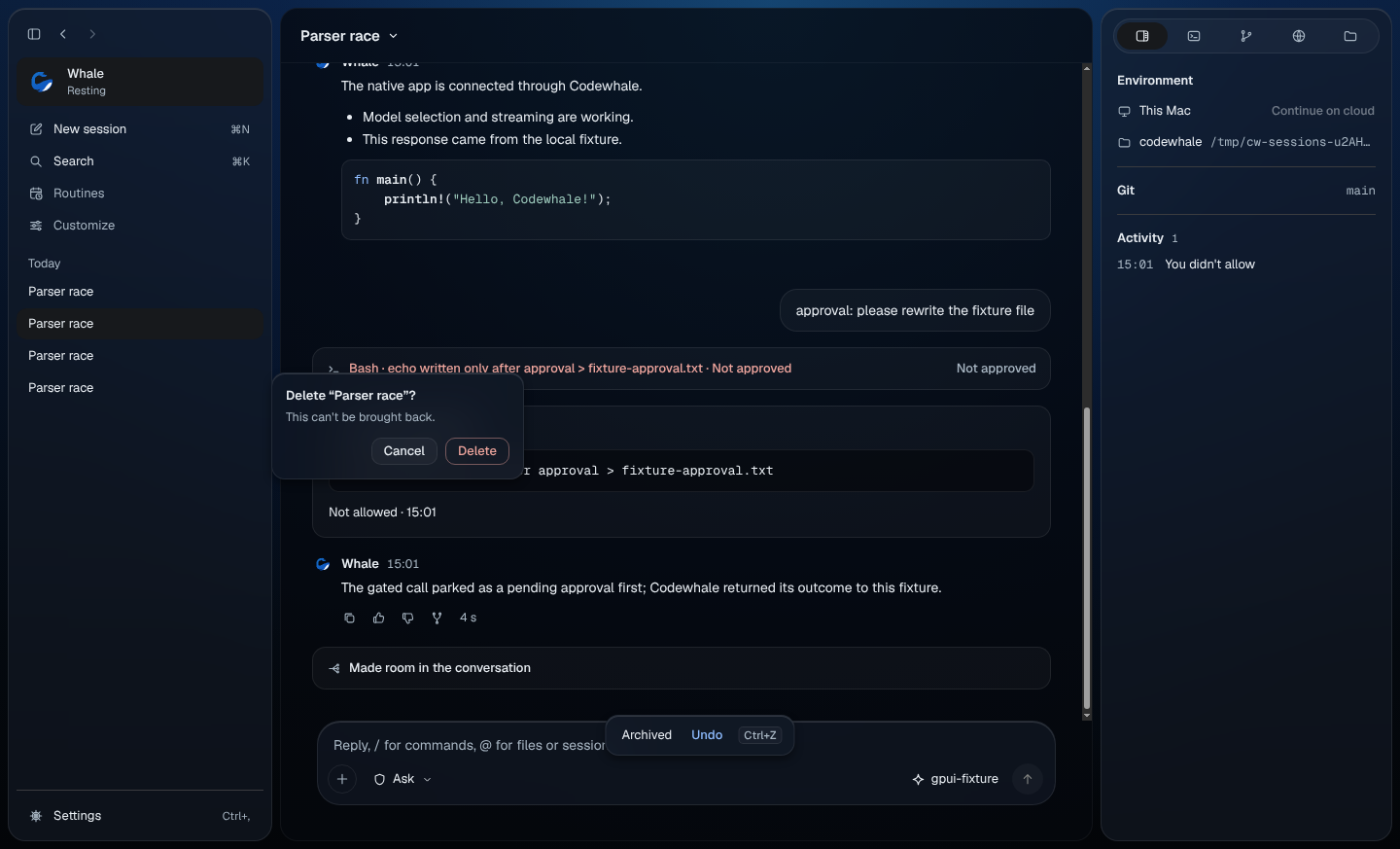
After Delete, a toast says "Deleted" with Undo for 6 seconds. The conversation is removed only when the toast goes away. A conversation that is still working can't be deleted; its menu says "Still working".
In a group conversation
Rename, fork, edit an earlier message, Make room, archive and delete aren't offered for a conversation you share with other people. Its menu has Copy › Conversation ID, plus Invite people… for the owner or Leave conversation… for everyone else. See Groups.
Read the line under the composer
The line under the composer shows what the conversation is doing, such as "Needs you · approve a command". While a reply is being written it also shows how long that reply has taken. It shows "worked …" once the conversation has worked for more than a minute in all, how many agents are running (click to see them in Overview), and "Context 80%" or more once the conversation is that full.
Under each reply
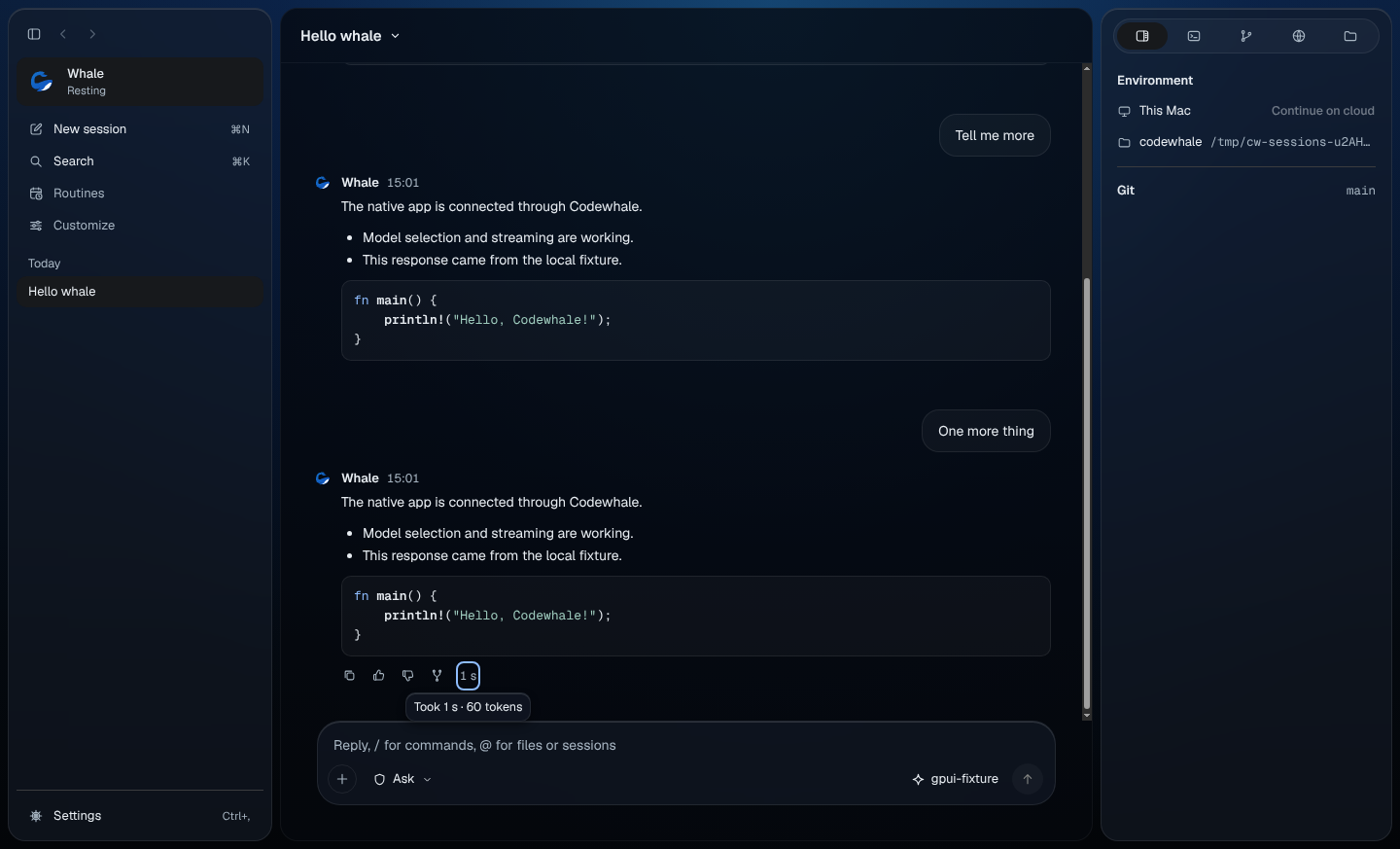
Copy, good reply, report, fork from here, and the time the reply took. Point at the time, or move to it with Tab, to see how long it took, the tokens it used and how much came from the cache. Good reply and Report say "Not available yet".
On the web
Not available yet.
On your phone
The phone's Conversations list shows the conversations in your account, with the ones that need you first, then the most recent. Tap one to open it; pull down to refresh. The phone can't rename, fork, archive or delete a conversation. See Codewhale on your phone.
Related
Previous: Talk with the whale · Next: Approvals and permissions